Wi-Fi Full Form: Wi-Fi is something we use every day, whether it’s for online classes, watching videos, or chatting with friends. But have you ever stopped to think about what is full form of Wi-Fi actually or why it is called Wi-Fi? The answer is simpler and more interesting than you might expect. Behind this common word is a short story of technology and smart naming.
Once you understand it, using Wi-Fi feels even easier. In this article, we will explain the full form of Wi-Fi, why it got this name, and also show you simple steps to find and manage your Wi-Fi password on an iPhone.
What Is Wi-Fi And Truth Behind Its Name
Add Zee News as a Preferred Source
Wi-Fi is a wireless networking technology that allows devices to connect to the internet without the use of cables. It works through radio frequencies and is based on a WLAN, or Wireless Local Area Network, system. Devices such as smartphones, laptops, and smart TVs use Wi-Fi to send and receive data.
While Wi-Fi is commonly believed to stand for Wireless Fidelity, this is a widespread misconception. In reality, Wi-Fi is not an abbreviation of any technical term. It is a brand name selected by the Wi-Fi Alliance in 1999. The name was intentionally kept simple and easy to remember, replacing complex technical terms like IEEE 802.11. Wi-Fi was inspired by the term Hi-Fi (High Fidelity), making it more relatable for the general public.
How Wi-Fi Works
In a Wi-Fi system, the router connects to the internet and sends the network to nearby devices using radio signals. Devices pick up these signals to access the internet, which is why you can use the internet without any cables. Wi-Fi is not owned by any single company or person. Its standards and technology are managed by the Wi-Fi Alliance, a group of tech companies. This organization works to make Wi-Fi better, faster, and more secure for everyone.
How To Find Your Wi-Fi Password On Your iPhone
Step 1: Open Settings on your iPhone and tap Wi-Fi.
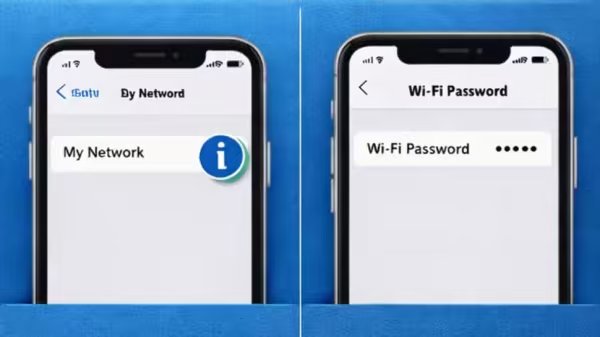
Step 2: Find your current Wi-Fi network and tap the “i” icon next to it.
Step 3: Tap the password field and authenticate using Face ID, Touch ID, or your passcode to view your Wi-Fi password.
Step 4: To see passwords for networks you’ve connected to before, tap Edit in the Wi-Fi settings.
Step 5: Tap any network from the list and then tap the password field to access it and reconnect your device without resetting the router.
How To Manage Wi-Fi Passwords
You can manage your Wi-Fi password more safely and easily by following a few simple steps. Use QR codes to connect devices, as this reduces the risk of typing errors. Limit sharing by only giving your password to trusted individuals to keep your network secure. It’s also a good idea to keep a secure backup of all frequently used Wi-Fi passwords, either through password manager apps or encrypted files. Finally, update your Wi-Fi password regularly to enhance security and protect your network from unauthorized access.
-
Trump Slaps 10% Tariffs On Eight European Countries Over Greenland Bid, Threatens 25% From June

-
2025 IndiGo crisis: DGCA penalises airline Rs 22 crore

-
Several Indians return from protest-hit Iran in commercial flights

-
Indian missions Iran pressing for early consular access to 16 detained Indians

-
Revanth Reddy lays foundation stone for IIIT Mahabubnagar