
Even a small lapse on WhatsApp can put your account at risk. From hacking attempts to scams and data leaks, cyber threats are everywhere. Here are 7 essential WhatsApp settings you should enable immediately to secure your account and protect your privacy.
1. Privacy Checkup: Control Who Sees Your InfoWhatsApp’s Privacy Checkup tool is the fastest way to control what others can see. In Settings > Privacy, you can choose who sees:
- Profile Photo
- Status Updates
- Last Seen
- Bio
You can also manage who can add you to groups and who can call you. Setting Last Seen and Status to “Nobody” adds an extra layer of security against strangers.
2. Enable ‘Disappearing Messages’The Disappearing Messages feature automatically deletes your messages after a set period: 24 hours, 7 days, or 90 days. This is especially useful if your device is lost or accessed by someone else. While screenshots or recordings may still exist, this reduces long-term exposure of sensitive chats.
3. Two-Step Verification and Security PINYour phone number is often the weakest link in account security. Activating Two-Step Verification requires a PIN when logging in from a new device.
- Go to Settings > Account > Two-Step Verification
- Create a PIN and optionally add an email for recovery
- WhatsApp now also supports passkeys for even stronger protection
App Lock allows WhatsApp to open only via Face ID, Touch ID, or fingerprint, while Chat Lock secures specific chats in a biometric-protected folder. You can also delete these chats immediately if needed. This feature prevents unauthorized access to sensitive conversations.
5. Activate Advanced Security SettingsUnder Settings > Privacy > Advanced, enable:
- Block messages from unknown contacts
- Keep IP address private during calls
- Disable link previews
Though slightly inconvenient, these settings significantly reduce exposure to hacking and spam.
6. Use Enhanced Chat PrivacyEnhanced Chat Privacy stops your chats from being exported outside WhatsApp. It restricts:
- Media auto-download
- Chat export
- AI usage of messages
Each chat must be manually enabled, and in group chats, admins can control whether members can change this setting.
7. Turn Off Read Receipts and Auto Media DownloadsDisabling read receipts (blue ticks) increases privacy by hiding your online activity. Note that this does not apply to group chats.
Additionally, WhatsApp saves photos and videos to your phone by default. To prevent media exposure:
- Go to Settings > Chats > Save to Photos and turn it off
- Use View Once feature for sensitive media so it disappears after viewing
By enabling these 7 security settings, you can protect your WhatsApp account from hacking, scams, and unauthorized access. Privacy and safety are in your hands—taking a few minutes to configure these features can save you from serious trouble later.
-
Summer Vacation Announcements for Schools in Delhi and Other States
-
Coal India CIL Management Trainee Recruitment 2026: Apply for 276 Positions

-
Understanding Endometrial Cancer: Risks and Prevention

-
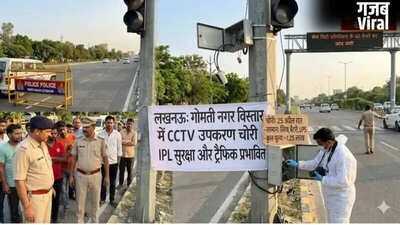
Lucknow's Safety Project Targeted by Thieves During IPL
-
Impact of Middle East Conflict on India's Economy: Challenges and Resilience