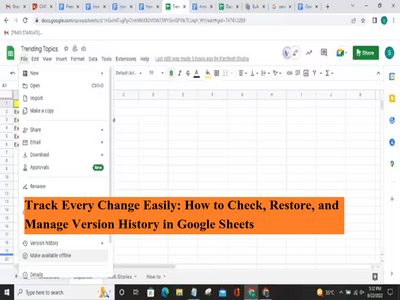
Google Sheets has become one of the most widely used spreadsheet tools for individuals, businesses, and teams. Unlike traditional spreadsheet software, Google Sheets works entirely online and allows multiple users to collaborate on the same file in real time. While this feature boosts productivity, it also increases the chances of accidental edits, deletions, or incorrect changes.
To solve this problem, Google Sheets offers a powerful feature called Version History. This tool records every change made to a spreadsheet and allows users to review, restore, or manage earlier versions with ease. Whether you are working on financial data, project tracking, or shared reports, version history acts as a safety net.
What Is Version History in Google Sheets?Version History is a built-in feature that automatically saves every change made to a spreadsheet. Each edit is stored with a timestamp and the editor’s name. This makes it easy to track who changed what and when. You can also revert your sheet back to an earlier version if something goes wrong.
This feature is especially useful when multiple collaborators are working on the same document simultaneously.
Why Should You Use Version History?Here are some key reasons why version history is important:
- Prevents permanent data loss due to accidental deletion
- Helps track edits made by different users
- Allows you to compare old and new versions
- Saves time by restoring previous versions instantly
- Eliminates the need for manual backups
For teams, it ensures transparency and accountability while working on shared spreadsheets.
How to View Version History in Google SheetsFollow these steps to access version history:
- You can also use the shortcut Ctrl + Alt + Shift + H (Windows).
You can click on any version to preview the spreadsheet as it appeared at that time.
How to Restore an Older VersionIf you want to go back to a previous version:
The spreadsheet will revert to the selected version, and the current version will also be saved automatically.
Can You Edit or Delete Version History?Google Sheets does not allow users to permanently delete version history. However, you can:
- Restore older versions
- Rename versions for better identification
- Create a copy of the sheet to start fresh
This ensures data integrity and prevents misuse.
Final ThoughtsVersion History in Google Sheets is an essential feature for anyone working with shared spreadsheets. It protects your data, improves collaboration, and gives you complete control over changes. Whether you are an individual user or part of a large team, knowing how to manage version history can save time and prevent costly mistakes.
-
Bengal gold merchant murder: Ex-Rajganj BDO missing from charge sheet

-
India gets on UN Honour Roll for prompt payment of its $35 million dues

-
Mum shot her own children and then gave police chilling statement

-
Ramadan's reduced office hours mandatory in UAE; how to calculate overtime

-
Killer gave away guilt with key mistake at end of documentary about himself