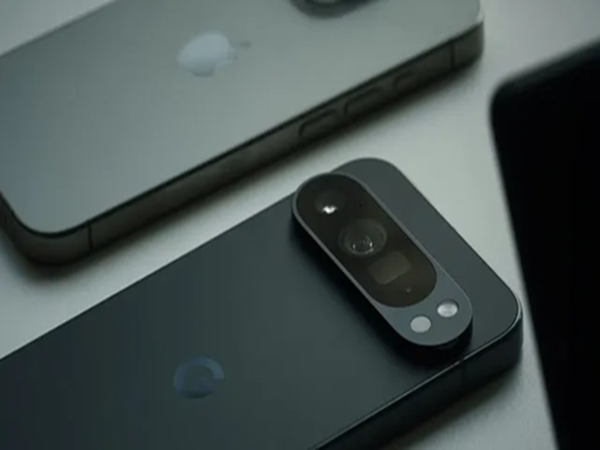
Switching from an iPhone to an Android phone has become easier than ever. With the release of iOS 26.3, Apple now allows users to transfer data from their iPhone to an Android device. This new feature allows you to transfer data like messages, media, and more from your iPhone to your new Android device. However, it's important to properly prepare both devices before starting the process to avoid unwanted delays or data loss. Here's a step-by-step guide to switching from an iPhone to an Android using the new Transfer to Android feature.
Checklist Before an iPhone to Android Transfer
Before transferring data from your iPhone to your Android device, ensure the following conditions are met:
Ensure your iPhone is updated to iOS 26.3.
Your latest Android device should be running Android 16 (or the latest compatible version from your manufacturer).
Both iPhone and Android devices should have at least an 80% charge. You can also keep both devices charging during the transfer process.
Make sure both phones are on the same Wi-Fi network and have Bluetooth turned on.
Before starting the platform switch, make sure your data is backed up to iCloud or a local Mac/PC.
Step-by-step guide to switching from iPhone to Android using the Transfer to Android feature:
If you want to switch from your old iPhone to a new Android device, follow these simple steps:
On your iPhone:
Open the Settings app on your device.
Go to General, scroll down, and tap Transfer or Reset iPhone.
Press the Transfer to Android button.
On your Android:
Turn on your Android device and perform the initial setup.
On the setup screen using the other device, tap iPhone or iPad.
Make sure you're connected to Wi-Fi.
Now, you need to scan the QR code displayed on your Android device. Additionally, you can tap Other options and connect using the Session ID and Pairing code.
Now you need to select the data you want to transfer and press Continue.
Follow the on-screen prompts to complete the transfer process.
List of Transferable Items
The iOS 26.3 update significantly expands the list of items allowed for data migration:
Messages: iMessages and SMS threads are converted to formats compatible with Android's RCS or Google Messages.
Media: Photos, videos, and even Live Photos (which are now converted to Motion Photos on Android).
Security: Your iCloud Keychain passwords can now be securely exported directly to Google Password Manager or your chosen Android vault.
eSIM: For supported carriers (like AT&T, T-Mobile, and Verizon), you can now trigger a direct eSIM transfer during this process, eliminating the need to visit a carrier store.
Note: For security reasons, health data, paired Bluetooth devices, and locked notes (encrypted notes) will not be automatically transferred and will need to be handled manually.
After transferring from iPhone to Android, you need to do these things:
Once your data transfer is complete, follow the steps below to ensure you don't miss anything:
Go to Settings > Messages and turn off iMessage. If you don't, texts from other iPhone users may try to go to your inactive iPhone.
On your new Android, the Play Store will prompt you to install its apps. It will automatically find Android versions of your free apps on iOS.
You'll need to manually add your credit card to Google Wallet, as financial data isn't shared between Apple and Google for privacy reasons.
Disclaimer: This content has been sourced and edited from NDTV India. While we have made modifications for clarity and presentation, the original content belongs to its respective authors and website. We do not claim ownership of the content.
-
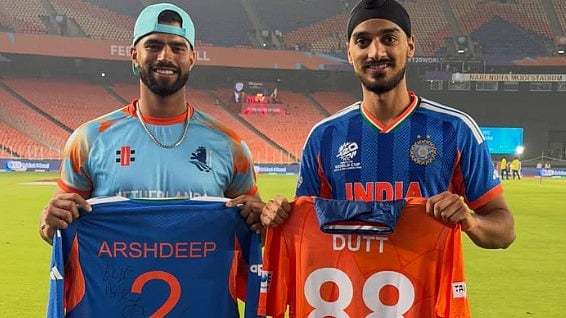
'No If, No But...': Arshdeep Singh & Aryan Dutt Exchange Jerseys In Heartwarming Post-Match Gesture During ICC T20 World Cup
-
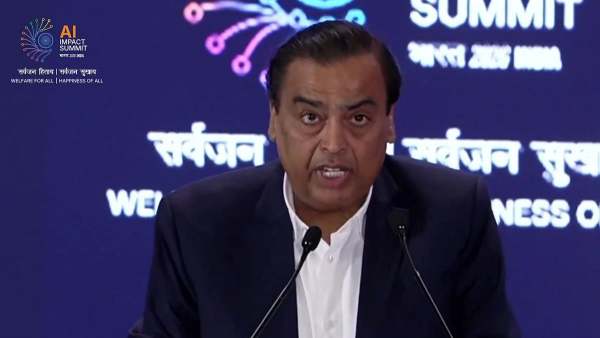
'Jio AI Bharat Ki Sanskruti Mein Phoolega': Mukesh Ambani Announces ₹10 Lakh Crore Investment At Delhi AI Summit
-
'Social Media, AI Must Be Child-Safe & Family-Guided': PM Modi, French President Macron Unite At Delhi Summit To Protect Children

-
Chhatrapati Shivaji Maharaj Jayanti: 'When Darkness Longed For Light, A Flame Rose High...'; Riteish Deshmukh Shares First Look Of Raja Shivaji

-
Skincare On OTT: Where To Watch Elizabeth Banks' Thriller Film Online