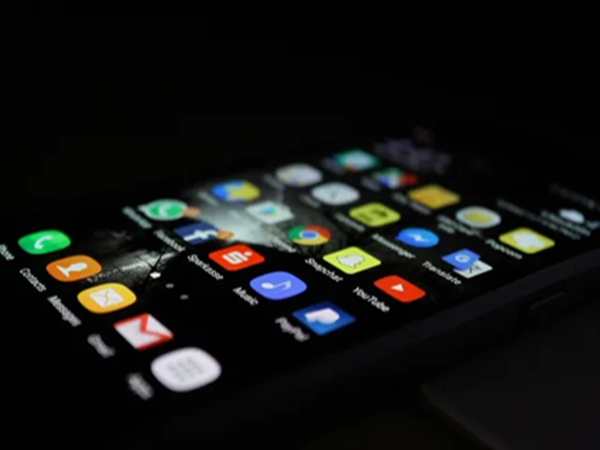
These days, most apps ask for permissions as soon as you install them. Some actually require them, while others quietly use your location, activity, or device data to personalize ads or track your behavior within the app. Fortunately, both iPhone and Android now offer a wealth of tools to control what apps can and cannot track. So, here are some simple ways to help you reduce unwanted tracking on your phone.
Why do apps track you?
Before you can stop tracking, it's important to understand why apps do so. Apps track for:
Your location.
How you interact with the app.
Your Ad ID (used for targeted ads).
For device details.
Browsing patterns.
This data helps ad networks show you personalized ads, but it also raises privacy concerns. The good news is that you can manually turn off most of this tracking.
How to stop app tracking on iPhone (iOS)?
Apple has one of the cleanest controls for this. To turn off app tracking:
Go to Settings.
Tap Privacy & Security.
Select Tracking.
Turn off Allow Apps to Request to Track.
This prevents all apps from tracking you across other apps and websites.
However, if you want to manage tracking on a per-app basis, you'll see a list of apps in the same Tracking section. Simply turn off the toggle for apps you don't trust.
There's another trick: disable location access. To do this:
First, go to Settings.
Click Privacy & Security.
And then click Location Services.
Tap any app.
Select Never or While Using the App.
How to stop tracking on Android?
Android gives you more granular controls, but they're spread across settings.
You can disable ad personalization:
To do this, go to Settings.
Search for Ads.
Tap Delete Advertising ID or Opt out of Ads Personalization.
This prevents apps from using your ad ID to track you.
You can also manage app permissions. Simply go to Settings, Privacy, and then Permission Manager. Check permissions like location, camera, microphone, and contacts. Switch unnecessary permissions to Deny. This will quickly reveal which apps are requesting excessive access.
PC Social Media
-
TRP Freeze: Information And Broadcasting Ministry Halts Ratings For News Channels For 4 Weeks Amid Israel-Iran Conflict

-
Bumrah’s Spell And India’s Fielding Made The Difference, Says England Skipper Harry Brook

-
SportVot x FPJ: ICL Mumbai Thrash Kenkre FC 8–0; Iron Born FC Edge Mumbai Soccer Prodigies 2–1 In Mumbai Premier League

-
ICC Men's T20 World Cup 2026: 'One More Step To Go,' Says Sanju Samson After India Reach Final
-
IND VS NZ T20 WC26 Final: Western Railway Announces Special Trains From Mumbai To Ahmedabad This Weekend - Check Timings