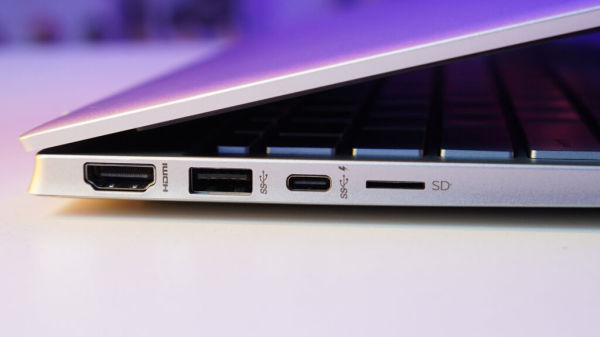
For most people today, HDMI is the default way to hook up a display. Popularized around the mid-2000s, HDMI remains widely used today on devices such as gaming consoles, laptops, TVs, and projectors. Beyond HDMI, DisplayPort is also relatively common, mostly for desktop PC monitors. For years, these two standards coexisted side by side, each using its own dedicated connector.
Of late, however, a newer connectivity standard — DisplayPort Alt Mode over USB-C — has gained popularity. While colloquially known as “USB-C Display”, this standard is essentially the same as the existing DisplayPort protocol. What is different is how the video signal from the source device reaches the display. Instead of the old DisplayPort connector, DisplayPort Alt Mode uses USB-C to transmit video signals. This approach has several advantages, with the most obvious being reduced clutter.
The most important advantage of the USB-C connector for displays, however, is its sheer versatility. Alongside video, the same USB-C cable and connector can power and charge a connected device while also transmitting USB data. For example, a laptop that supports DisplayPort Alt Mode over USB-C can be charged using the same USB-C cable used to connect it to the monitor. While this sounds very seamless and intuitive, as things stand now, there are several factors to consider when choosing between USB-C and HDMI.
USB-C cables for displays: When to use them
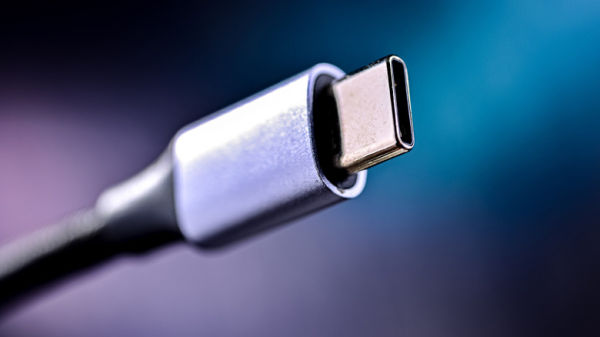
The most obvious use case for using USB-C is when connecting a modern laptop to a monitor. In many cases, the monitor will power the laptop when you connect the two. Choosing this option negates the need for separate power and display cables, with a single cable handling data transfer, power, and display transmission. Given that laptops are portable devices, having a single USB cable do the heavy lifting is a boon. USB-C’s data transfer capabilities also let you plug in USB peripherals to the monitor; handy if your laptop is short on USB ports.
The biggest issue with using USB-C for display output is compatibility. While USB-C-compatible displays and devices have been around for a while, not all products support this technology yet. And because USB-C ports look identical on the outside, you need to rely on several visual indicators to make sure your devices support USB-C displays.
To begin with, users should look for a small DisplayPort (DP) logo next to the USB-C port on the laptop. This is a sure sign that the specific port supports DisplayPort Alt Mode over USB-C. Alternatively, look for a Thunderbolt port (denoted by a lightning bolt icon), which also supports display output. You will also need a monitor with a USB-C display input. If you want the monitor to charge your laptop, you’ll also want one that is capable of USB-C Power Delivery (PD). And lastly, ensure that the USB-C cable you are using also supports all three signals. Take care of all of these, and you’ll have a smooth experience with USB-C displays.
When to stick with HDMI cables
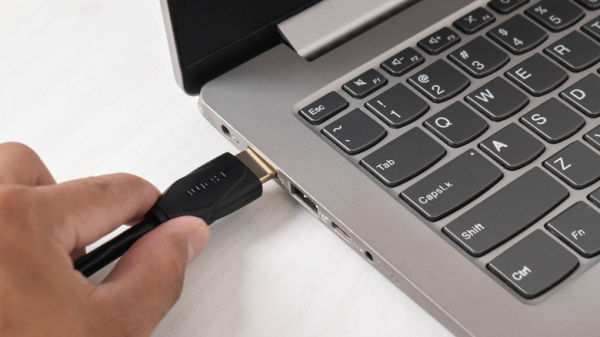
USB-C displays and compatible monitors are definitely the hot new thing, but being the newest kid on the block doesn’t mean it suits everyone. If you already have an existing computer, gaming, or home theater setup, chances are you’ll be fine with an HDMI cable. The newest HDMI standard (HDMI 2.1) can output 4K at 120 Hz and even 8K, which is similar to what USB-C can offer and should suffice for most users. Since your home setup is mostly static, any portability disadvantages compared to USB-C won’t really come into play here.
USB-C-ready desktop computers and graphics cards made a brief appearance, but did not really catch on. Besides, with desktops already having HDMI and DisplayPort, there is no real incentive to add a USB-C port with display support. For the same reason, switching to a USB-C display setup isn’t a priority for a vast subset of users, including gamers and those with home entertainment setups. Gaming consoles like the PS5 Pro and Xbox Series X continue to use HDMI 2.1 as well. While these consoles do sport USB-C ports, none of them natively support the DisplayPort Alt mode over USB-C.
In simpler words, if you want a clean, single-cable setup for a laptop, go with USB-C. If you’re working with a desktop or home entertainment setup, HDMI (or DisplayPort) is still the simpler, more reliable choice.