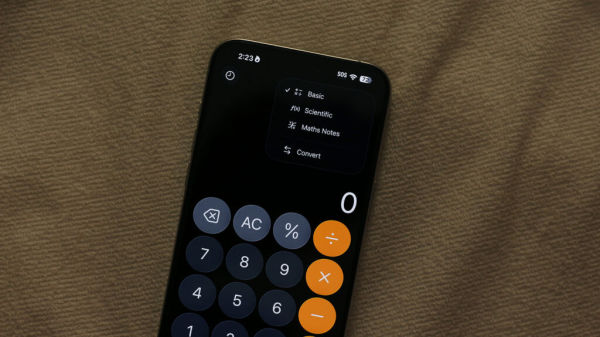
Without the App Store on iOS, we wouldn’t be able to play exciting games or get great utility out of purpose-built apps. If there’s anything you want your phone to do, it’s likely a third-party app exists to do it. This is not to say that the iPhone’s built-in apps aren’t good — in fact, there’s surprisingly a lot you can do with them. The calculator app, for instance, has a minimal user interface that places all the numbers and operators exactly where you’d expect. Previous calculations are saved in the history, and the app to will also convert units or currency. You can switch to a scientific calculator, too.
As long as you’re using the right order of operations, the calculator app on your iPhone can handle exponential, logarithmic, and trigonometric functions. Apple also lets you perform calculations in a more organized and dynamic manner through Math Notes, which was introduced in 2024. You can switch modes on your calculator app, including Math Notes, by tapping on the tiny calculator icon in the upper right corner. Alternatively, you can convert a regular note into a Math Note through the Apple Notes app.
Now, instead of solving calculations the traditional way, you can write equations in a more notebook-style format. This also means you can assign variables, solve chained calculations, or even mess around with graphs. If you utilize the feature enough, you can turn your iPhone into a mini math workstation for all kinds of scenarios.
Using Math Notes on iPhone
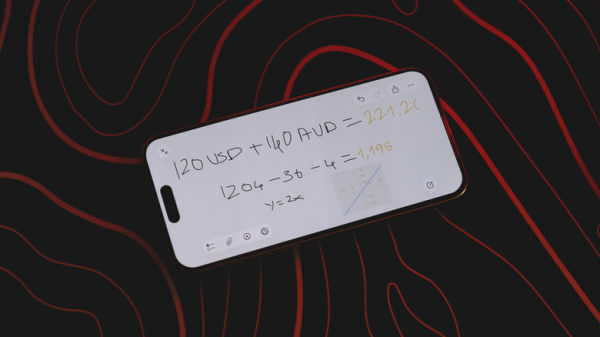
Math Notes is a feature available on iPhones running iOS 18 or newer. If you don’t see the option to create a Math Note in the calculator or the Notes app, make sure your iPhone is updated to the latest version. While working in a Math Note, you can switch to the handwriting mode. This lets you write equations in a more natural way. Math Notes will solve an expression the instant you include an equal sign. You might also appreciate (or not appreciate as the case may be) how the result follows a similar font as your handwriting.
If there are any unsolvable expressions, Math Notes will highlight the error using a dotted red line. If you spot a dotted blue line, it means Math Notes was unable to decipher a character or number you’ve written. You can also calculate results using different systems — say, you want to add values of different currencies together — you can simply write “130 USD + 140 AUD =” and your iPhone will do the conversion on the fly and add them together. Math Notes are even saved in their own folder in the Notes app for quicker access.
Another way you can quickly calculate results or convert units is by typing an expression followed by the “=” operator in any app using your keyboard. As long as you have Math Results enabled in Settings > General > Keyboard, you should be able to perform quick calculations on your iPhone in any app.