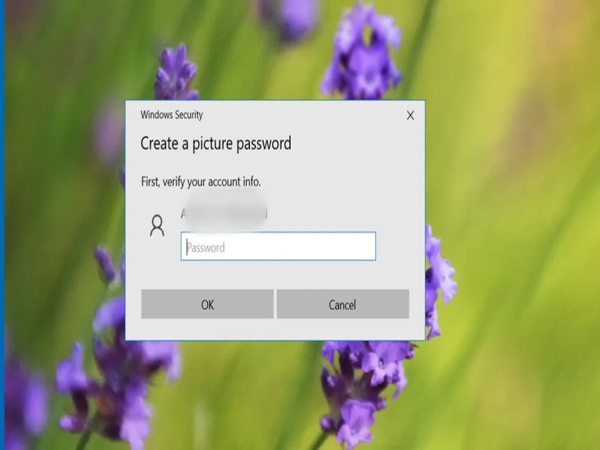
Protecting your laptop from cyber attacks with Picture Password: People often choose simple passwords for their laptops to avoid forgetting them, but such weak passwords can be easily hacked or guessed by someone watching. To address this issue, Windows laptops offer a unique biometric-style visual feature known as "Picture Password."
What is a Picture Password?
The Picture Password is a Windows security feature that few people are aware of. It allows users to select a photo of their choice and set a login pattern by touching or clicking on three specific points within that image. Whenever you need to unlock the laptop, you simply click on those same three spots in the same sequence. The system unlocks once the correct pattern is entered.
Why is this feature special?
This feature is highly useful for those who wish to avoid typing traditional passwords or who frequently forget them. Additionally, the Picture Password makes the login experience more personal and engaging, allowing users to utilize a favorite photo as an extra layer of security.
A major advantage of this feature is that, since no keyboard is used, malicious software like "keyloggers" cannot track your password. It becomes nearly impossible for hackers to crack such visual patterns, making this a top-tier security option.
While experts still recommend strong passwords, PINs, and multi-factor authentication, the Picture Password serves as an interesting alternative for users looking to simplify and personalize their login process.
How to set up a Picture Password on a Windows laptop:
How does this picture lock work?
Using this picture lock is incredibly easy. The best part is that you do not need to memorize long strings of names, numbers, or special characters.
When setting up the Picture Password, your chosen image will appear on the laptop screen. You need to click on any three distinct points (locations) of your choice on that picture.
Whenever you turn your laptop back on, that same photo will appear on the screen; as soon as you click on those same three spots again, your laptop will unlock in the blink of an eye.
If you also wish to enable this secret lock on your Windows laptop,
follow these simple steps:
First, press the 'Windows + I' keys simultaneously on your laptop keyboard, or simply open the Settings directly.
Go to the search box (search bar) within the Settings window and type "Picture Password" to search for it.
You will see an option labeled "Set Up a Picture Password" appear in the search results.
Click on this "Set Up a Picture Password" option using your mouse.
On the next screen that opens, you will see various security-related options (Sign-in options). Scroll down and select the "Picture password" option.
After selecting this option, click the "Add" button located right below it.
For security reasons, before activating this feature, the system will ask for your laptop's current password or PIN; please enter it.
A new customization window will now open, displaying a default picture (you can choose a photo of your own preference if you wish).
Now, click on any three spots of your choice on the picture displayed on the screen.
These three precise clicks will become your laptop's new digital password.
Disclaimer: This content has been sourced and edited from Amar Ujala. While we have made modifications for clarity and presentation, the original content belongs to its respective authors and website. We do not claim ownership of the content.
-
Train Cancellations: Important news for passengers—several trains cancelled on June 14; check your status before traveling.
-
Rampur DM's appeal: Biometric system launched; farmers advised to procure fertilizer only as needed..

-
Government Scheme: A boon for daughters—get a bumper fund of ₹72 lakh at age 21; know the rules

-
REET Mains Result 2026: The wait is over for 8.9 lakh candidates; Rajasthan teacher recruitment exam result is live..

-
Lost Metro Card: Lost your Metro card? Don't worry about the loss—just take these immediate steps.