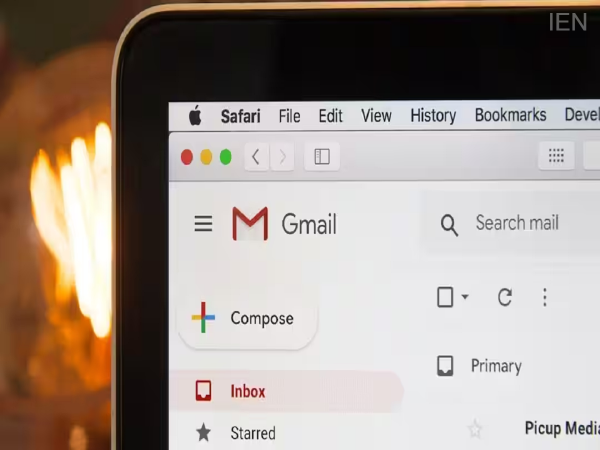
Tech Tips: Gmail has become one of the most essential tools for people today. You receive important emails ranging from office correspondence to bank notifications via Gmail. However, it is common for some emails to automatically end up in the Spam folder. This often causes people to miss important emails or fail to see them on time. But today, we are going to tell you about a setting that ensures all your emails appear in the inbox instead of going to Spam.
Why do important emails go to Spam?
Gmail features an AI-based spam filter designed to identify suspicious and fake emails. However, the system sometimes mistakenly flags legitimate emails as Spam. This can happen if an email comes from a new address, its content appears promotional, or similar emails have previously been marked as Spam.
Use Filters
If you frequently receive emails from a specific person or company, creating a Gmail filter for them is highly beneficial. To do this, first open Gmail on your computer and click the "Show search options" icon located in the search bar.
Enter the relevant email address in the "From" box and click "Create filter." Next, select the "Never send it to Spam" option. Finally, click "Create filter" again. Messages from that email address will now go directly to your inbox.
How to retrieve emails
If an important email has landed in your Spam folder, you can easily move it back to your inbox by following a few simple steps:
Open Gmail on your computer.
Click on "More" on the left-hand side and open the "Spam" folder.
Open the email you need.
Click on the "Not spam" option visible at the top. Subsequently, Gmail will begin to recognize messages from that specific email address, reducing the likelihood of them being marked as spam.
How to adjust settings in the mobile app
Most people today keep Gmail logged in on their smartphones as well. While the option to create filters is not currently available in the mobile app, emails that have ended up in the Spam folder can be moved back to the correct category. To do this, open the Gmail app and navigate to the Spam folder. Open the relevant email and tap the three dots at the top. Then, select the "Report not spam" or "Not spam" option.
-
West Indies Cricket Legend Sir Garry Sobers Passes Away 10 Days Before 90th Birthday

-
HRAWI Urges Maharashtra Govt To Extend Bar Operating Hours For FIFA World Cup Final Viewing

-
The Odyssey Box Office Collection Day 1 Prediction: Christopher Nolan's Directorial Is Heading For A Good Start In India

-
Gemini Tarot Horoscope Today, July 18, 2026: Stay enthusiastic and balanced in dealings

-
Cancer Tarot Horoscope Today, July 18, 2026: Stay calm and trust your instincts for success