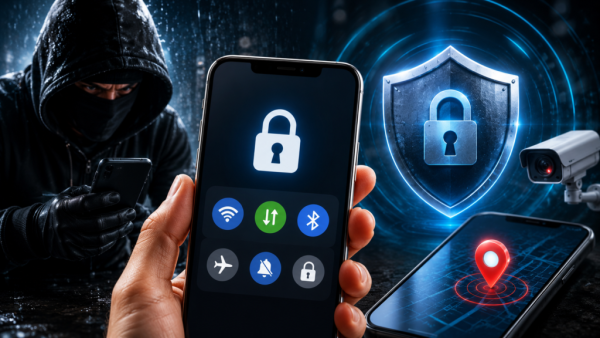
Tezzbuzz Desk- In today's time, the smartphone is not just a means of making calls, but has also become the key to banking, social media, photos, documents and many important accounts. In such a situation, if the phone is stolen or lost, there is not only the fear of losing the device, but there is also the worry of misuse of personal data. The good thing is that there are many security features available in Android and iPhone, which by activating them in advance can make it easier to keep the phone safe in case of theft or loss.
Restrict access to Control Center from the lock screen
If someone changes settings like Wi-Fi, mobile data or airplane mode from the lock screen after the phone is stolen, it can be difficult to track the device. Therefore, definitely check the access to Quick Settings or Control Center available from the lock screen in your phone. However, the names and options of settings in Android phones may differ depending on the company and model. So look for options like Lock Screen, Security or Notification Center in Settings and limit the ability to change network settings from the lock screen.
Make sure to install a strong screen lock on your phone
First of all, set a strong PIN, password or biometric lock in your phone. Instead of just having a simple four-digit PIN, choose a passcode that's difficult to guess. If your phone offers a feature like Face Unlock or Fingerprint, then it can also be activated. Screen lock is the first layer of security of the phone, so it should not be ignored.
Keep Find Hub on in Android
Google in Android phones Find Hub Can help locate a lost or stolen phone, lock it, and erase data if needed. According to Google, Find Hub can help locate some devices even when offline. To set this, open Settings in the phone and see the options to Find Hub inside Google's services. Allow device to be located Keep on. Also, activate offline finding feature if available.
iPhone users remove Control Center from the lock screen
If you use an iPhone, turning off access to Control Center from the Lock screen can be a useful security step.
For:
- Open Settings.
- Face ID & Passcode Go to.
- Enter your passcode.
- Allow Access When Locked Scroll to section.
- Control Center Turn it off.
This will limit direct access to Control Center from the lock screen when the phone is locked.
Turn on Stolen Device Protection in iPhone
in iPhone Stolen Device Protection An important security feature. According to Apple, this applies additional protection to certain sensitive changes when the phone is outside a familiar location. Face ID or Touch ID may be required for many operations, and Security Delay is also applied for some critical security changes.
How to turn it on:
- Open Settings.
- Face ID & Passcode Go to.
- Enter passcode.
- Stolen Device Protection Tap on.
- This turn on Do it.
To use this feature, the iPhone must meet certain requirements like Find My, Passcode, Face ID or Touch ID, and two-tier security of Apple Account.
Keep Find My always on on iPhone
in iPhone Find My It is very important to keep it active beforehand. This helps in locating the phone and putting it in Lost Mode if it is lost or stolen. According to Apple, with the help of Find My network, it can help in finding the location of the device even when it is offline. Additionally, Activation Lock also provides security when Find My is on. This makes it difficult for someone else to set up and use the phone with their Apple Account.
Limit USB access also
in iPhone USB Accessories The option is also part of lock screen security. Keeping it closed when not needed can provide additional security. This is especially useful when the phone falls into the hands of an unknown person.
What to do immediately if the phone is stolen?
If the phone is stolen, do not try to find it yourself or chase the thief. From another device, use Android's Find Hub or Apple's Find My to lock the phone and activate Lost Mode or a similar security option, if available. If necessary, also contact the mobile operator and police. Also change the passwords to banking and other important accounts.
Keep in mind: No setting is guaranteed to prevent the phone from completely switching off in all situations. Security options may also differ across different Android brands and models. Therefore, the best way is to first check the security settings available according to your phone model.
-
China to be India's main long-term competitor in multiple fields: Army ex-chief Naravane

-
Cong decision to sing only two stanzas of Vande Mataram is anti-national: Dhami

-
Candidates with clean image, winning potential will get tickets for civic polls: Rajasthan BJP chief

-
NTA says answer key challenge designed to be fair to all students, rejects 'expensive' charge

-
Brian Brobbey’s redemption: How Sunderland’s Dutch striker silenced the doubters