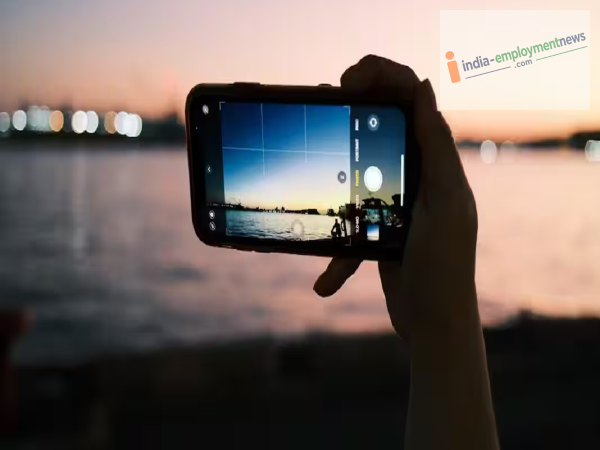
Is your phone's camera being used without your knowledge? Check for green indicators, camera permissions, and suspicious apps to find out if someone is spying on you.
Nowadays, smartphones are no longer just tools for making calls and sending messages; features like the camera, microphone, and location have become integral parts of our daily lives. Consequently, if an unknown app gains camera access or a suspicious app is present on your phone, concerns about privacy are natural. However, the camera turning on automatically doesn't always signal a hacking threat. You can determine who is using your camera by following a few simple steps.
Indicators appear when the camera is in use
Modern Android phones and iPhones display a privacy indicator whenever the camera or microphone is active. On Android phones, a green dot or indicator typically appears at the top of the screen when an app is accessing the camera or microphone.
If you haven't used the camera but this indicator appears repeatedly, it is a good reason to investigate which app is accessing the camera.
Be sure to check camera permissions
Open your phone's Settings and navigate to the Privacy or Security & Privacy section. Here, you should find an option like "Permission Manager." Select "Camera" within this menu. Review the list of apps that have been granted camera permission. If you find an app with camera access that doesn't actually need it, revoke that permission.
Keep an eye out for unknown apps
Carefully review the list of apps installed on your phone. If you spot an app you didn't install yourself, or one whose name and function are unclear, investigate it further. Be especially wary of apps that appear normal on the surface but request excessive permissions. Before removing a suspicious app, verify that it isn't part of an essential system function.
Check via the Privacy Dashboard
Many Android phones feature a 'Privacy Dashboard.' Here, you can view which apps have recently accessed permissions such as the camera, microphone, or location. If the camera was accessed at a time when you had not opened any camera-based app, you should review that app's permissions.
How iPhone Users Can Check
iPhones also provide privacy indicators for camera and microphone access. By navigating to Settings > Privacy & Security > Camera, you can see which apps have permission to use the camera. You can revoke camera access for any app if it is not required. Additionally, features like the 'App Privacy Report' help you understand app activity.
-
When SRK revealed reason behind not going to Kashmir for longest time

-
Death toll rises to 903 in Nepal flash floods

-
Over 30 SCR employees assaulted on duty in five years: RTI

-
Iran conflict, trade tensions to dominate India’s G20 agenda

-
Joe Root Matches Virat Kohli's WTC Record As England Thrash Pakistan At Lord's