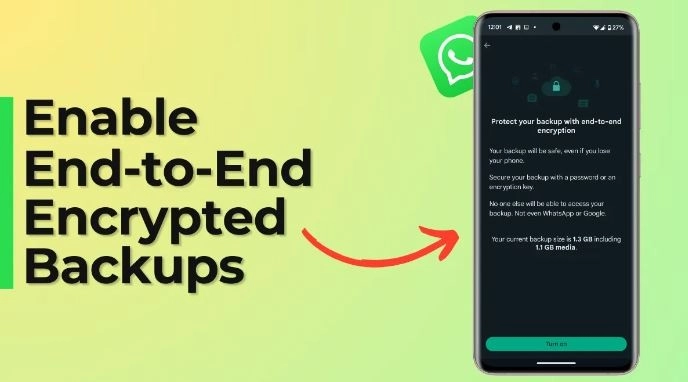
WhatsApp’s end-to-end encryption is a safety feature of the social messaging platform that protects messages/ chats from third-party intruders such as hackers. This encryption also extends to chat backups stored in Google Drive or iCloud on Android mobile phones and iPhones, respectively. However, the end-to-end encryption feature on WhatsApp chat can only be done manually. Here’s a quick guide on how to enable and disable the feature as needed.
Enable or disable WhatsApp end-to-end encryption backup on Android
Step 1: Open WhatsApp on your Android phone
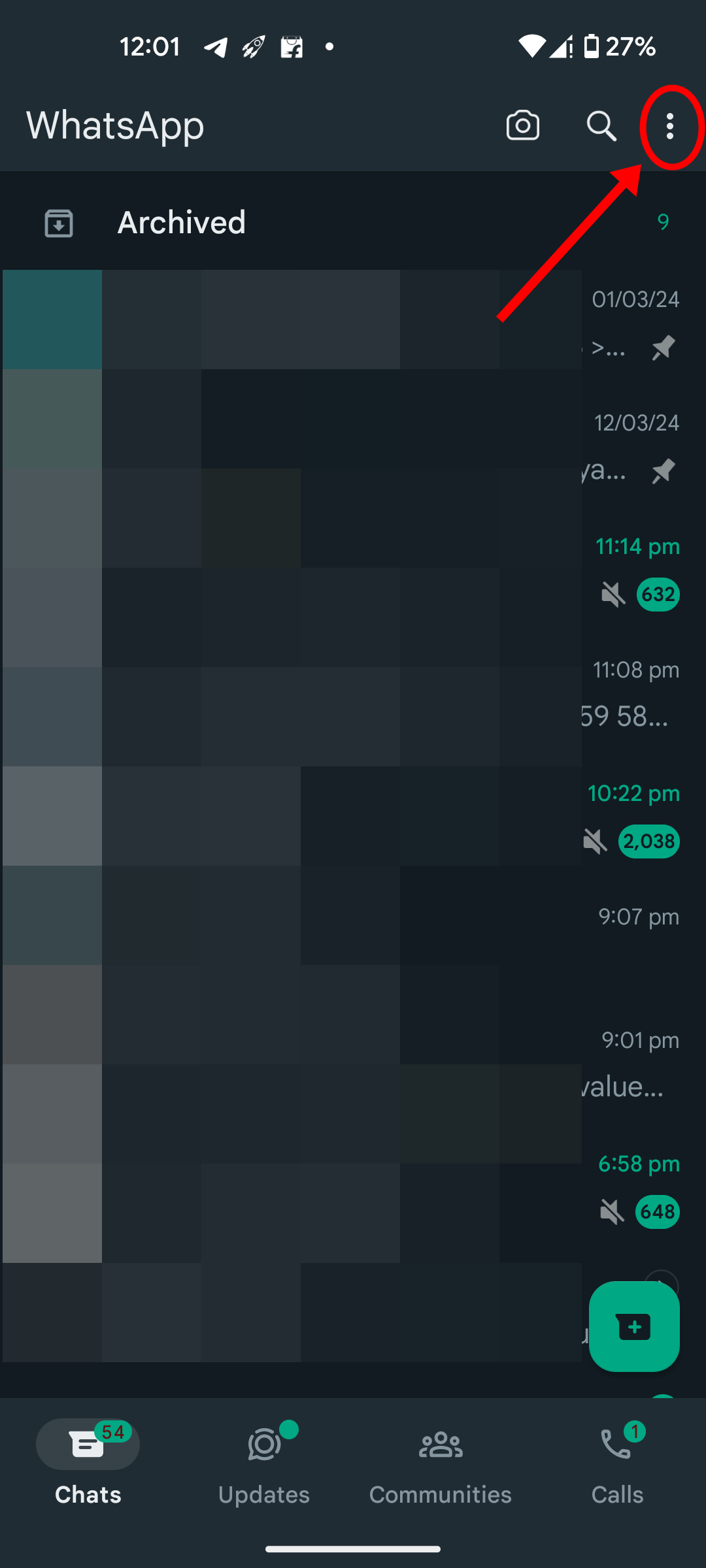
Step 2: Now select the ‘3-dots‘ icon at the top right corner
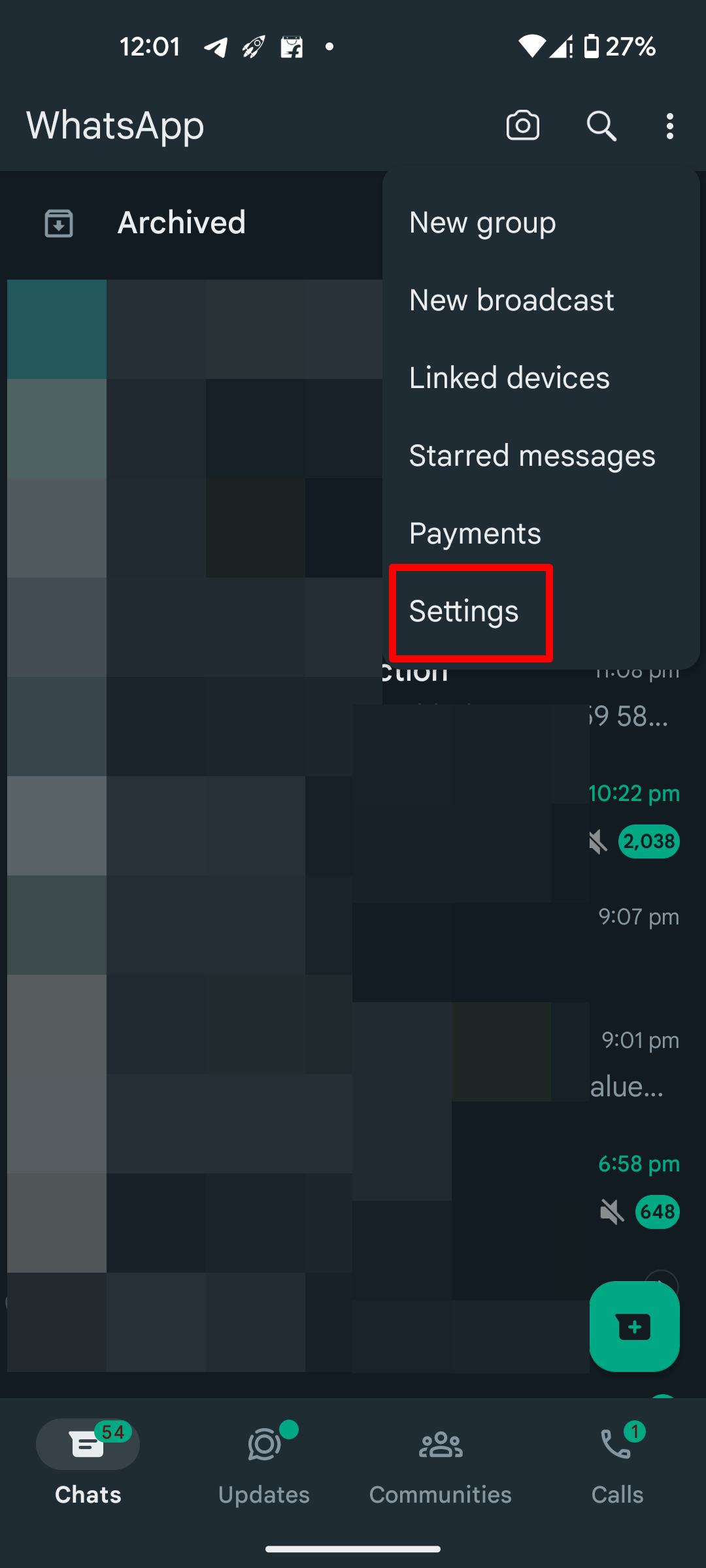
Step 3: From here tap ‘Settings‘
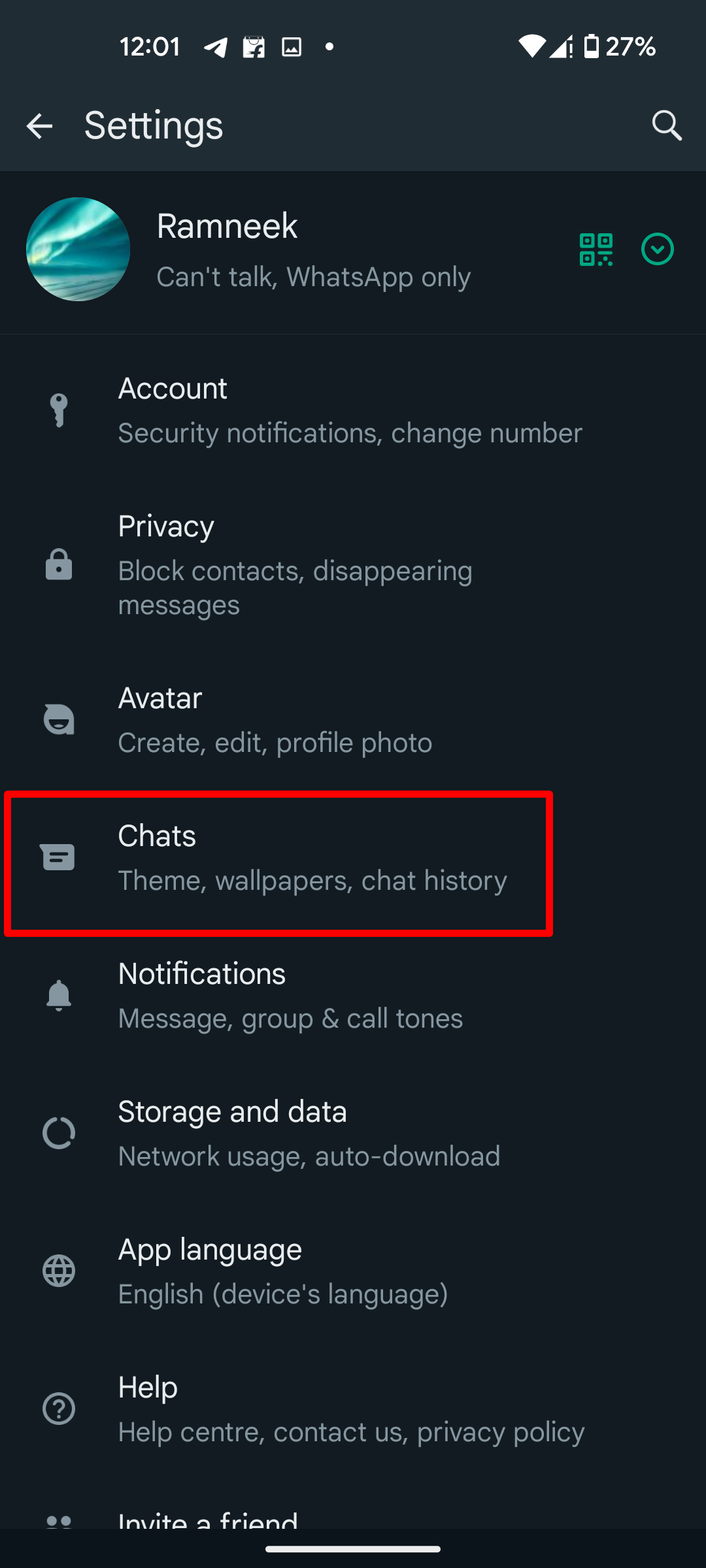
Step 4: From the options, select ‘Chats‘
Step 5: On the next screen select ‘Chat backup‘
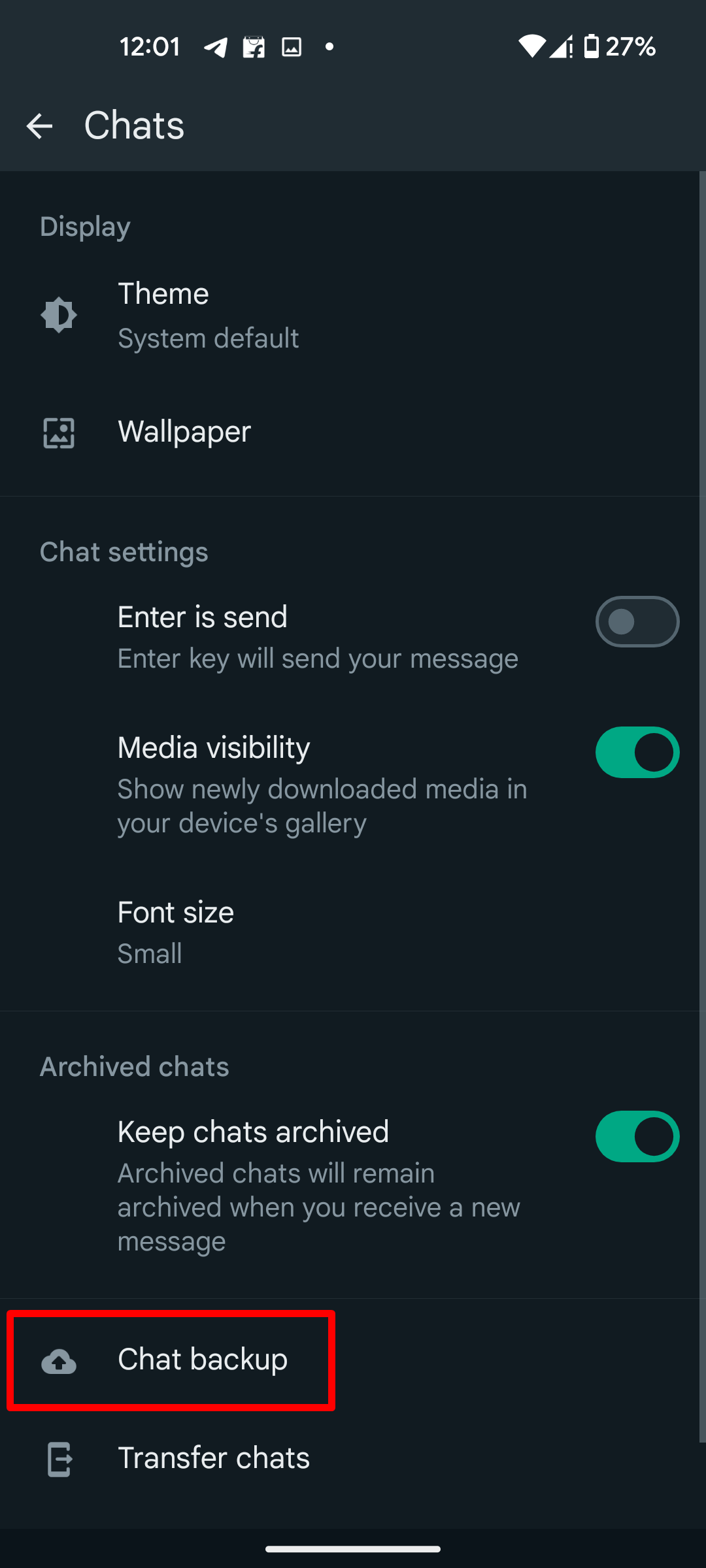
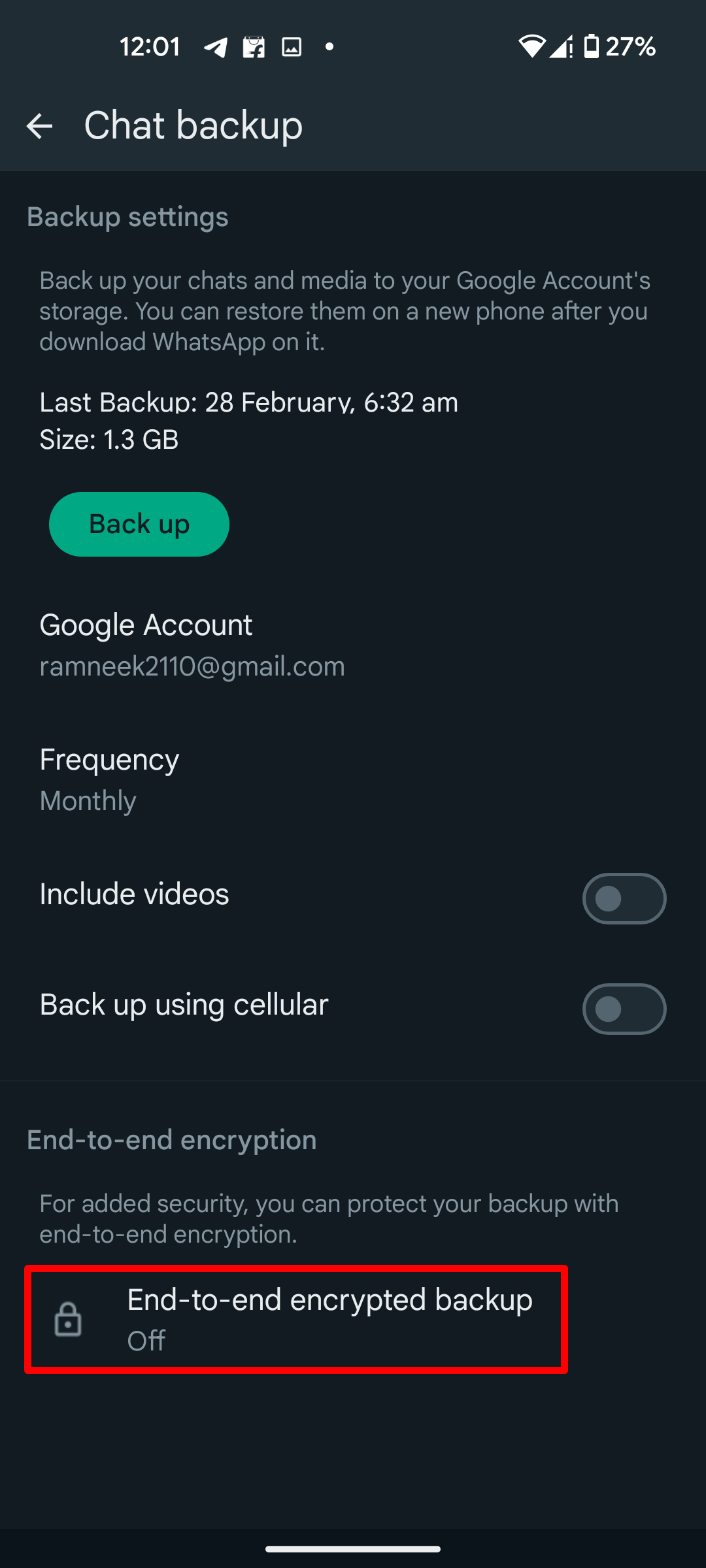
Step 6: Now tap on the bottom-most option, ‘End-to-end encrypted backup‘
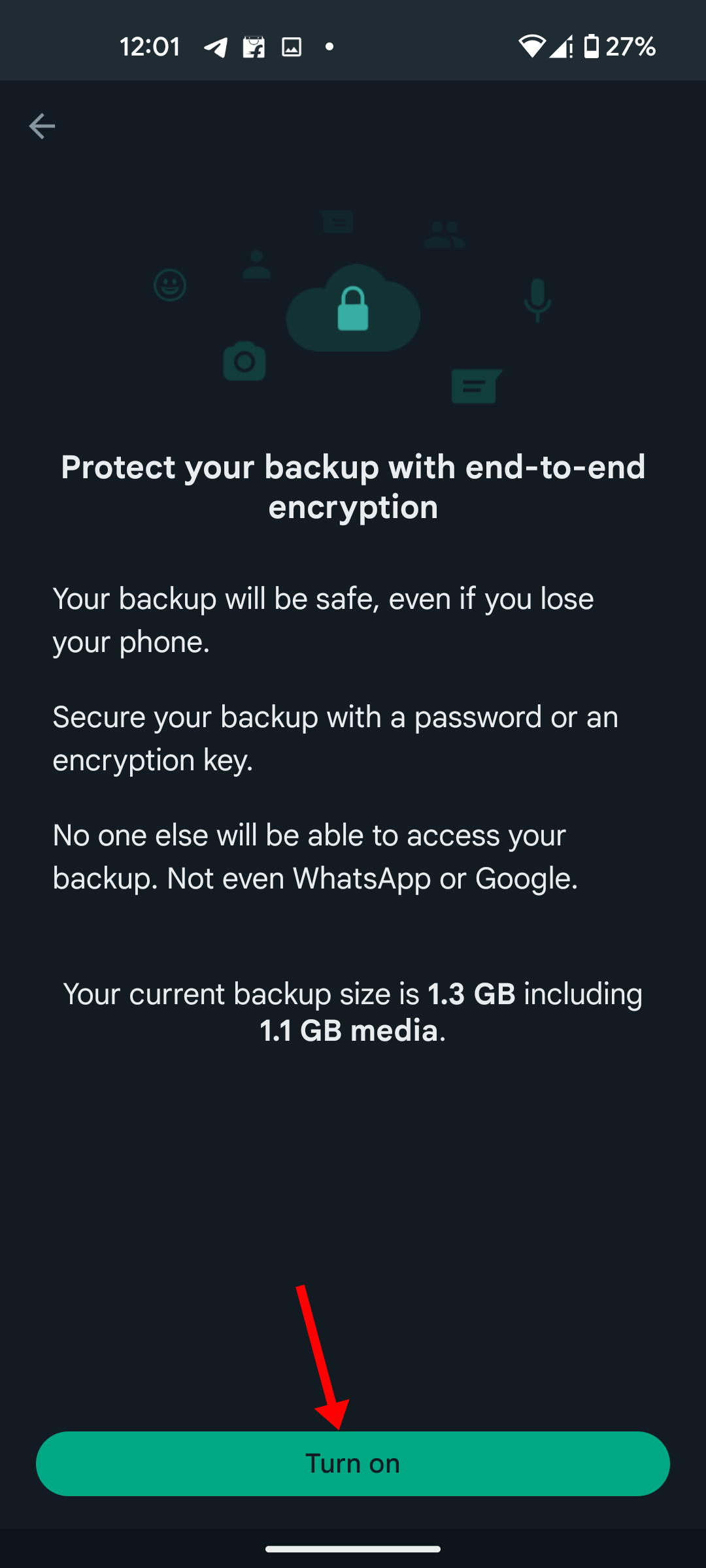
Step 7: Tap the ‘Turn on‘ button on the next screen
Step 8: Now it’ll prompt you to add a password or a 64-bit encryption key. Select one per your preference
Step 9: Enter the password or key and tap ‘Create‘. Upon doing that, the new backup will replace the existing WhatsApp backup on your Google Drive
To disable End-to-end encrypted WhatsApp backups on Android, follow the process mentioned above and select ‘Turn off‘ on the last step. Enter the key or password when asked.
Enable or disable WhatsApp end-to-end encryption backup on iPhone
Step 1: Open WhatsApp on your iPhone
Step 2: Now select ‘Settings‘ from the bottom tap
Step 3: Select ‘Chats‘ from the given options
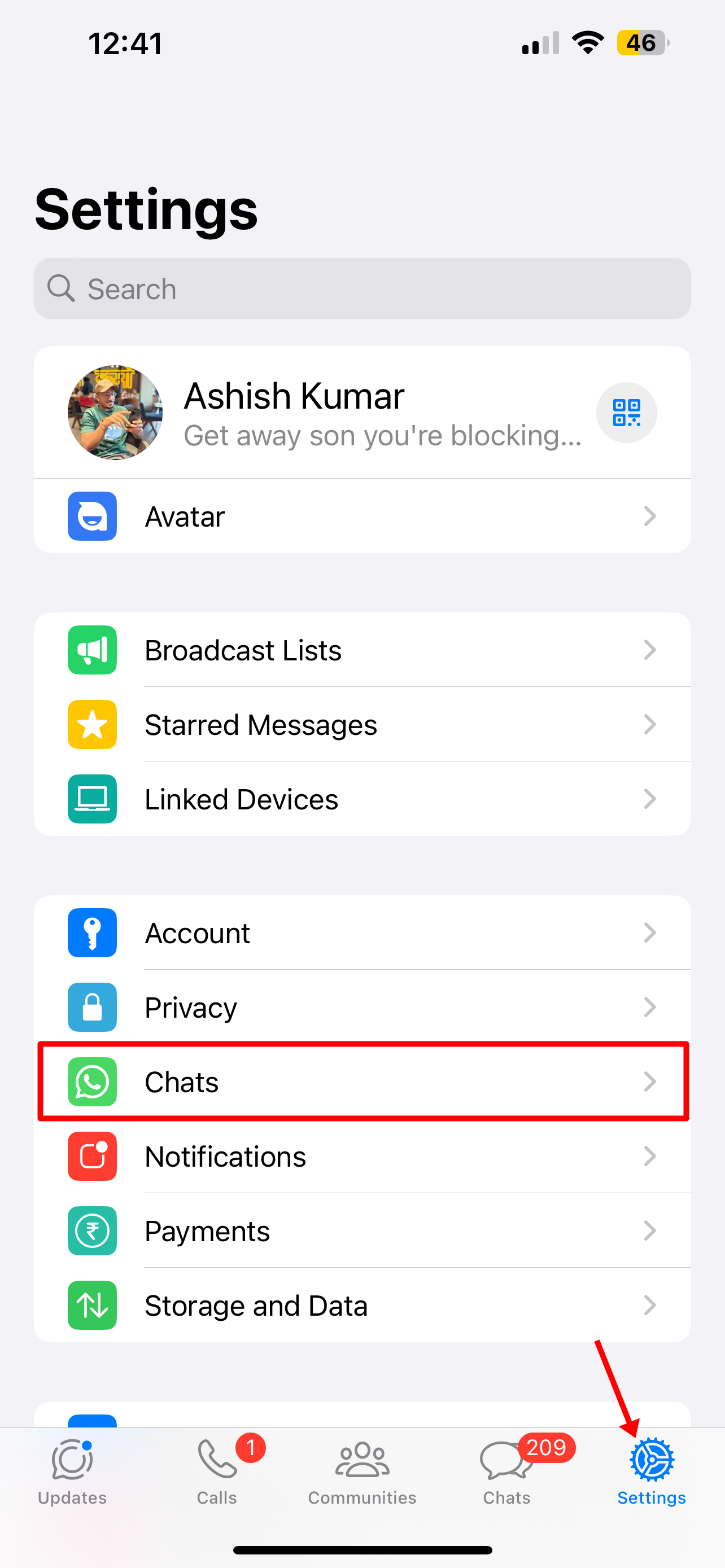
Step 4: On the next screen select ‘Chat backup‘
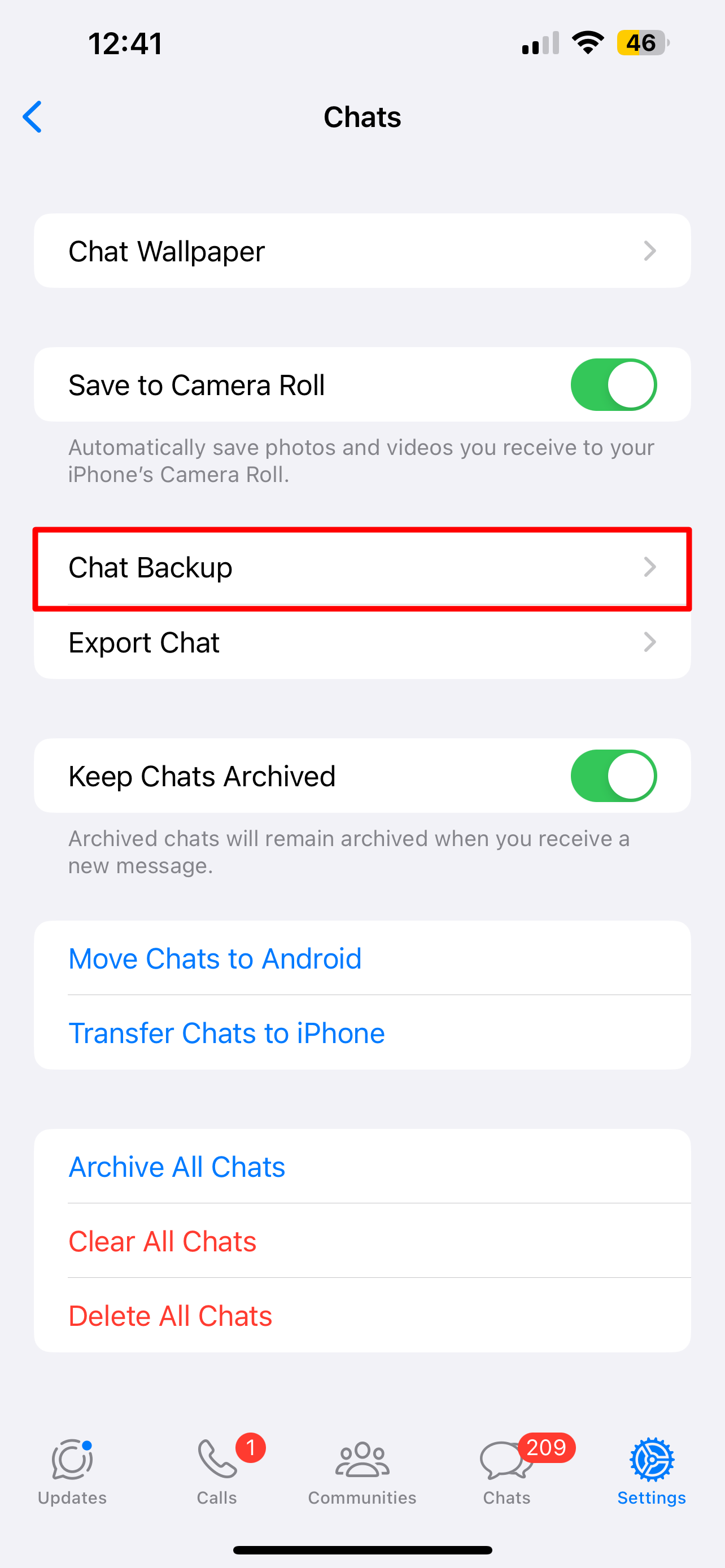
Step 5: Tap on the bottom-most option called ‘End-to-end encrypted backup‘
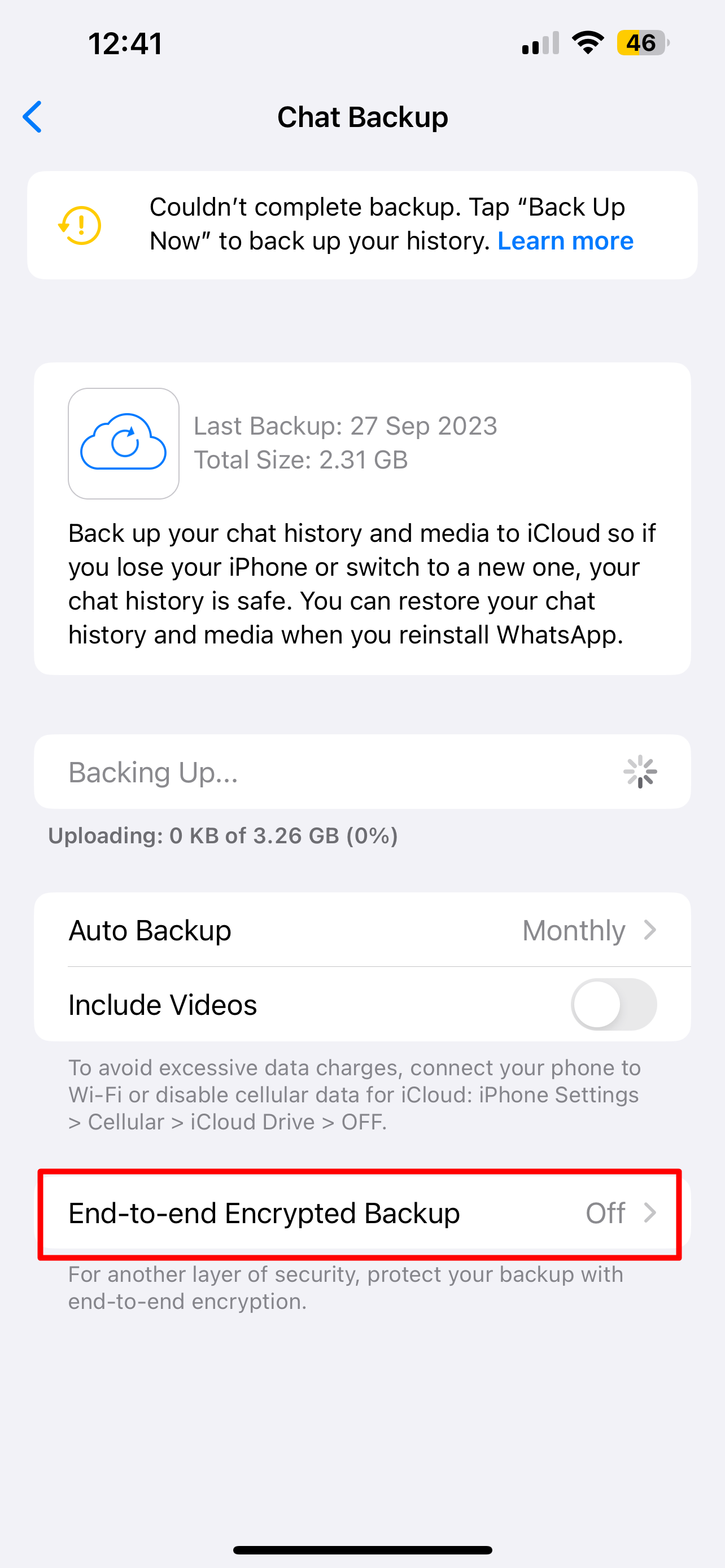
Step 6: Tap ‘Turn on‘ on the next screen
Step 7: Now it’ll prompt you to add a password or a 64-bit encryption key. Select one per your preference
Step 8: Enter the password or key and tap ‘Create‘. Upon doing that, the new backup will replace the existing WhatsApp backup on your iCloud storage
To disable End-to-end encrypted WhatsApp backups on iPhone, follow the process mentioned above and select ‘Turn off‘ on the last step. Enter the key or password when asked.
End-to-end encrypted backup vs end-to-end encrypted messages
- End-to-end encrypted backups involve protecting the WhatsApp backups stored in Google Drive and iCloud storage using a password or a 64-digit encryption key. Backups can include chat messages and media. Once the backups are password protected, no third-party entity or service can access the backup’s content as the information is encrypted.
- End-to-end encryption on WhatsApp messages adds a layer of security to your chats by locking the messages you send. These messages can only be unlocked when they’re received on the recipient’s end using a special key, which all happens seamlessly in the background. Unlike backups, end-to-end encryption on messages is enabled by default.
What is WhatsApp end-to-end encrypted chat backup?
By default, WhatsApp chat backups on Google Drive or iCloud aren’t encrypted with an extra layer of security. This can cause concerns for the users in case the cloud storage providers access their chat history. To address this concern, WhatsApp introduced end-to-end encrypted backups. With this enabled, the chat history is encrypted before being uploaded to your cloud storage. This means even the cloud storage provider (like Google or Apple) can’t decrypt your messages.
How to change end-to-end encryption backup password in WhatsApp?
To change the password of WhatsApp end-to-end encryption backups, simply go to the app’s Settings and select Chat Backup. From here, tap End-to-end encrypted backup and click on the ‘Change Password’ option. Then select ‘I forgot my password’ and enter your device PIN or scan biometrics to create a new password for your backup.
Is it necessary to enable end-to-end encryption on WhatsApp backups?
While it is not necessary to turn on end-to-end encryption on WhatsApp backups, users having fear over their messages being accessed or read by cloud storage providers like Google Drive and iCloud can enable the feature to enjoy an added level of security.
-
Quote Of The Day | Maya Angelou On Why True Strength Lies In Never Giving Up

-
Bihar Govt To Withdraw Cases Against NEET Protesters, Release Detainees

-
Arsenal get eye-watering asking price for Real Madrid attacker Vinícius Júnior

-
Chelsea poised to make another bid for Alex Scott

-
Rajesh Ramesh Ready For Commonwealth Games Debut As India's Relay Star Eyes Another International Milestone