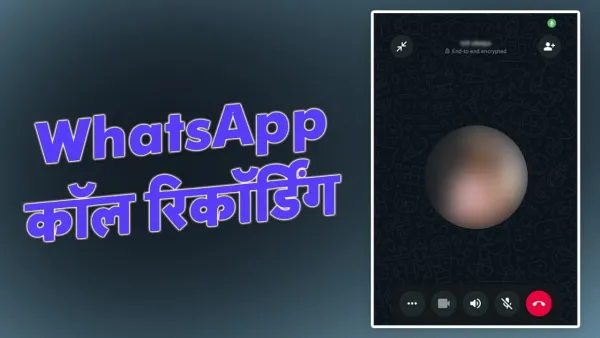
By Jitendra Jangid- Friends, as we know that WhatsApp is the most popular instant messaging app in the world, apart from this many people also use it for calling, sometimes we need to record the conversations, however You cannot record WhatsApp calls, but you can record calls through some third party apps, let's know about them.
Using Screen Recording WhatsApp how to record a call
Enable screen recording: WhatsApp Before making or receiving a call, Activate the screen recording feature on your phone.
Select audio options: Select the option to record both media and microphone audio. This will ensure that the audio from the call, Also any sound from your phone can be captured.
Record call: Once screen recording is on, This will capture audio from both your voice and the voice of the person you're talking to. Note that sound quality may vary, And the voice of the person on the other end of the call may not be as clear as yours., But this is an easy solution.
iPhone Users can also use this method by enabling the microphone option in the screen recording settings. This will allow both your voice and the other person's voice to be recorded during the call.

WhatsApp call recording
WhatsApp Keeps updating and improving its features regularly, it has not yet WhatsApp No official feature has been introduced to record calls. as a result, If you WhatsApp want to record call, So you have to depend on third-party apps.
-
‘He was in tears and so was I’ – Raphinha’s wife shares emotional call after Brazil star’s World Cup injury setback

-
Cancer Tarot Horoscope Today, June 23, 2026: Business growth will continue, new opportunities will arise

-
Libra Tarot Horoscope Today, June 23, 2026: Focus on home décor and make the most of profit opportunities

-
Scorpio Tarot Horoscope Today, June 23, 2026: Good health and steady progress ahead

-
Financial Horoscope Today, June 23, 2026: Pisces to Experience Strong Financial Growth, Check What’s in Store for Other Signs