Solving laptop keyboard problems
Nowadays most of the people use laptop or desktop for office work and personal tasks. This device has become an important part of our daily life. Be it office work, children’s education, ticket booking or watching movies, the need for a laptop is felt everywhere.
Many times it happens that while working on a laptop, the keyboard suddenly stops working. If you are also facing this problem, then it can be fixed by using some special tricks before going to the service center. Let us know about these tricks.
restart the laptop
Sometimes keyboard problems are software . In such a situation, restarting the laptop once can be helpful. This is the simplest and most effective method.
check battery
Most laptops have a battery under the keyboard. When the battery swells, the keyboard stops working. To check this, remove the battery, put the laptop on charge and turn it on. If the keyboard is working, the problem is with the battery.
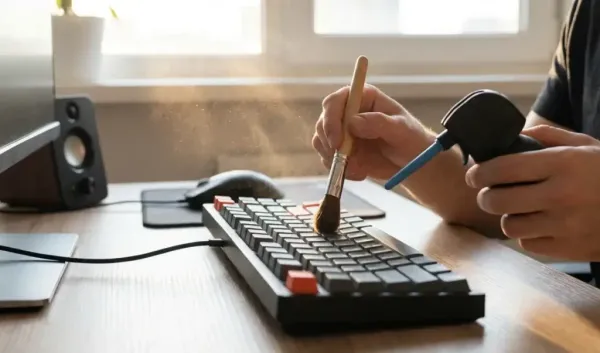
clean keyboard
It is normal for dust and dirt to accumulate on the keyboard, but this can prevent the buttons from working properly. Clean it with a light brush, air blower or dry cloth. This will solve your problem.
check keyboard driver
Go to the Start menu, open Device Manager and check the keyboard options. If a yellow mark appears in front of the keyboard, there is a problem with the driver. In such a case, remove the driver and restart the laptop. The driver will install automatically when the system restarts.
use external keyboard
You can also check the problem by plugging in a USB keyboard. If the external keyboard is working fine, it means that the problem is with the laptop’s keyboard itself.
Check keyboard settings
It may also not work properly if the keyboard’s language settings have changed. For this, go to settings and check.
-
American calls northern UK market town 'cutest she's seen in her life'

-
Princess issues new emotional statement about 'regret' after Epstein revelations

-
'Cinematic masterpiece' based on iconic horror series leaving Netflix

-
Popular high street brand with 120 UK branches closes store after 10 years of trading

-
Snow forecast maps show 21 UK cities buried as 61cm blizzards hit - full list