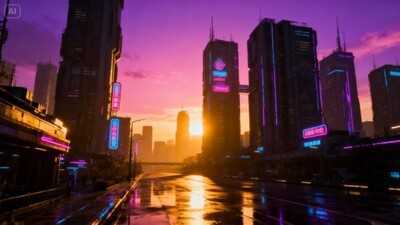
Picture yourself typing one sentence, seeing how the AI converts your input into an entire illustration before your very eyes. It no longer looks like something out of the future but rather a reality thanks to GPT image 2 model, especially when combined with the use of Dreamina. In this case, you do not have to utilize complicated software; you just need to explain your idea, and the AI will craft the image for you.
Whether it is content creation, social media posts, or even branding material, such methods help get rid of technical limitations, giving the creative ones a chance to flourish. The main question is, how can you create impressive visuals from mere prompts?
This article will guide you in doing that, while simultaneously revealing some tricks about how you can make your work shine.
For many people, designing meant working with a certain program.
However, nowadays, the very first step involves coming up with a particular idea for your artwork. All of the designing happens through using descriptive prompts.
What is so fascinating about such an approach?
- You can generate several options at once
- No special skills are required
- You can experiment freely
This allows anyone, from newbies to professionals, to create impressive visuals instantly.
Anatomy of a great promptIf you ever found yourself generating an image different from what you imagined, chances are you weren't doing anything wrong—the prompt was at fault.
A frequent question asked: How to use GPT image 2? The proper usage of this model goes beyond mere descriptions. It should be as detailed as instructions for a creative director.
Effective prompts always include the following:
- The subject: What does it entail?
- The style: Realistic, digital painting, cinematic, minimalist, etc.
- Lighting: Natural light, neon lighting, dramatic, etc.
- Angle/perspective: Close-up shot, wide shot, bird's-eye view, etc.
- Mood: Energetic, calm, mysterious, etc.
For instance, rather than writing:
"A city skyline"
Write:
"A futuristic city skyline at sunset, with glowing neon lights, cinematic mood, wide-angle shot, ultra-detailed and high contrast."
Those few words can turn mediocre outputs into amazing visuals.
When these visuals truly shineNot only are AI visuals entertaining to look at—they're extremely useful too.
They are used for:
- Creating branding concepts and logos
- Launching social media advertising campaigns
- Enhancing blog posts and adding visuals to tell stories
- Designing products
The possibilities are endless as you easily adjust your visuals based on your industry needs.
From idea to visuals: efficient workflow for creativesLet's go interactive. Suppose you wish to create a poster.
Come up with your concept:
What message does your poster have? To whom should it be addressed? How should it look?
Translate your concept into a prompt. Add details progressively. Create several variations. Improve them.
Idea -> prompt -> visuals -> improve: this cycle is the true power of any AI visuals creation.
The magic of prompts at work: creating visuals using GPT image 2 in Dreamina Step 1: Access Dreamina's "AI Image" functionThe first step involves launching Dreamina and clicking on the "AI Image" function, which appears on its homepage. Click on "Upload" then select an image from your computer as a guide to the AI if you have a particular style and/or structure in mind. Afterward, enter an elaborate prompt within the designated dialogue box.
For example: Create an expert digital artist working in an elegant studio with visuals created from written text on a hologram, evolving from abstract shapes to sophisticated designs in a modern, well-lit setting with realistic materials and aesthetics.
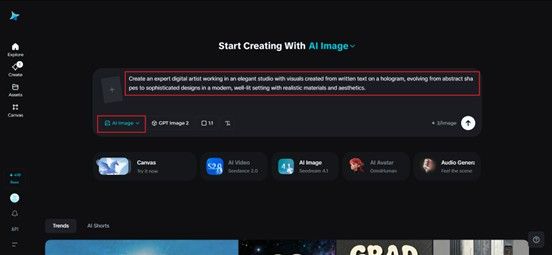 Dreamina AI
Secondly, select GPT Image 2 AI and select an appropriate resolution and size for your image. Press Dreamina's icon after creating your prompt, and a brand-new image is automatically created.
Step 3: Download the realistic imageFour image versions will be provided by Dreamina software after pressing Enter. Select any version that appeals to you, then edit it using tools such as inpaint, remove, among others. To download the image to your computer, click the "Download" option in the upper right-hand corner of the screen.
Transforming simple prompts into outstanding visualsAfter creating the image, there is still much to do to turn it into something amazing. Rather than regeneration of all of it, concentrate on fixing particular areas:
- Fixing them via inpainting
- Altering the composition
- Lighting and tone correction
This way, you'll save time and gain control over the end product.
Tips for enhancing your visuals to become professional-gradeWhen you want to improve your visuals, even slight additions might do wonders for the final result.
Consider adding:
- Cinematic lighting to add layers to your visualizations
- Particular camera shots to increase reality
- Textures to add complexity to the image
In addition, you may try using words such as "ultra-detailed," "high resolution," "studio lighting," etc., for better effects.
Experimenting with different stylesOne of the biggest advantages of using AI image generator technology is that you are able to change the style freely. You may want to consider creating different versions, such as:
- Minimalist style visuals
- Fantasy art
- Real photography style
All of these will allow you to try different things until you hit the mark. Also, you'll be happy to learn that you can experiment using the free GPT image 2 workflow via Dreamina platform.
Preventing common mistakes with the promptAs great as these tools are, mistakes might occur. And luckily, fixing them is usually easy to do.
Be careful about:
- Ambiguous descriptions that will confuse AI
- Cluttering up prompts with unnecessary information
- Neglecting composition and lighting
Always strive to find the right balance between providing enough context for AI to understand what you need and giving too many details.
Iteration is more important than perfection in AI creationOne of the most important mindsets to adopt in AI design is realizing that your first version does not have to be perfect.
And often, it isn't.
This is why iteration is key:
- Try creating several variations
- Compare them and select the best one
- Revise your prompt accordingly
In time, this process will allow you to approach your target image.
Combining creativity and effectivenessAI generators don't replace your imagination – on the contrary. It's still up to you to determine:
- Which image to create
- What emotion should it convey
- How it will fit into your project
The AI merely serves as an aid that assists you in carrying out your ideas more efficiently.
Conclusion: turn your ideas into reality with DreaminaNo longer will you find it difficult to convert prompts to visuals because the whole process has become more fun and effortless through Dreamina's GPT image 2.
It becomes easier to work creatively within the framework of flexibility.
Thus, once an idea crosses your mind, you should quickly write a prompt, convert it into a visual and bring your creativity to life.
-
Beloved actor found dead in restaurant as police investigation opens
-
25,096 crores... This company made history by earning a staggering ₹400 crore in the fourth quarter.
-
Nagaland: ED files second supplementary charge sheet in HPZ Token Crypto investment scam
-
In the mid 2000s, Daniel Ek challenged slow downloads and redefined the music experience
-
Effective Remedies for Summer Skin Irritations