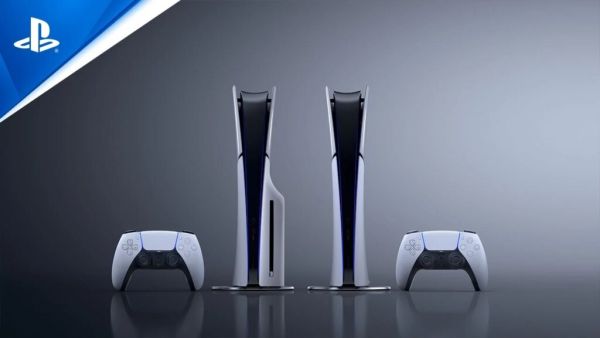
Apple AirPods are among the most popular wireless earbuds available today. Many PlayStation 5 owners naturally want to use them while gaming. However, connecting AirPods to the PlayStation 5 is not as simple as pairing them with an iPhone or iPad.
The PlayStation 5 does not support standard Bluetooth audio devices directly. Fortunately, there are several ways to use AirPods with Sony’s console. This guide explains everything you need to know and shows the easiest methods to get started.
Why AirPods Do Not Connect Directly To PS5
The PlayStation 5 uses Bluetooth technology for the DualSense controller, but Sony does not allow regular Bluetooth headphones to connect directly for audio purposes.
This restriction exists mainly to reduce sound delays and maintain stable performance during gameplay. As a result, AirPods cannot be paired with the console through the normal Bluetooth settings.
If you attempt to connect them directly, the PlayStation 5 may detect the earbuds, but it will not complete the pairing process.
Method 1: Use A Bluetooth Adapter
Using a Bluetooth adapter is the most popular and reliable solution. These small devices act as a bridge between the PlayStation 5 and your AirPods.
What You Need
- A PlayStation 5-compatible Bluetooth adapter
- Your AirPods, AirPods Pro, or AirPods Max
- A charged AirPods case
Steps To Connect AirPods To PS5
- Plug the Bluetooth adapter into one of the USB ports on the PlayStation 5.
- Turn on the adapter and activate pairing mode.
- Open the AirPods charging case.
- Press and hold the button on the back of the case until the indicator light starts flashing.
- Wait for the adapter to detect and connect to the AirPods.
- Open the PlayStation 5 sound settings.
- Select the USB audio device as the output source.
Once the pairing process is complete, game audio should play through your AirPods.
Benefits Of Using A Bluetooth Adapter
A dedicated adapter offers several advantages:
- Easy setup process
- Wireless gaming experience
- Better audio stability
- Lower sound delay compared to some alternatives
- Compatibility with different AirPods models
This method is generally recommended for most players.
Method 2: Connect Through A Smart TV
Many modern televisions support Bluetooth audio devices. If your television includes this feature, you can pair the AirPods with the TV instead of the console.
How To Do It
- Open your television settings.
- Locate the Bluetooth menu.
- Put your AirPods into pairing mode.
- Select the AirPods from the list of available devices.
- Confirm the connection.
Because the PlayStation 5 sends sound to the television, the audio will then be transmitted to your AirPods.
Advantages
- No additional accessories required
- Quick setup
- Convenient for casual gaming
Disadvantages
- Possible audio delay
- Limited sound features
- Performance varies depending on the television model
Method 3: Use PlayStation Remote Play
Another option involves the PlayStation Remote Play application.
Remote Play allows players to stream PlayStation 5 games to a smartphone, tablet, or computer. Since AirPods can connect normally to these devices, you can listen to game audio through them.
Steps
- Download the PlayStation Remote Play application.
- Sign in with your PlayStation account.
- Pair your AirPods with your phone or tablet.
- Launch Remote Play.
- Connect to your PlayStation 5.
This method works without additional hardware, although network quality affects performance.
Can You Use The AirPods Microphone?
The microphone situation depends on the connection method.
In many cases, the built-in microphone on AirPods will not work properly with the PlayStation 5 when using a Bluetooth adapter. Some adapters support voice chat, but many only transmit audio.
Because of this limitation, dedicated gaming headsets remain the better choice for competitive multiplayer games.
Common Problems And Solutions
If your AirPods are not connecting, try these solutions:
- Ensure the AirPods are fully charged.
- Confirm that the Bluetooth adapter supports audio transmission.
- Place the AirPods close to the adapter.
- Restart the PlayStation 5.
- Reset the AirPods and repeat the pairing process.
- Check the audio output settings on the console.
These simple steps solve most connection issues.
Which Method Is Best?
Among the available options, using a Bluetooth adapter provides the best overall experience.
It offers:
- Stable audio quality
- Simple installation
- Broad compatibility
- Reliable wireless performance
Connecting through a smart television is a good alternative if your TV supports Bluetooth, while Remote Play provides another solution for players who prefer not to purchase extra hardware.