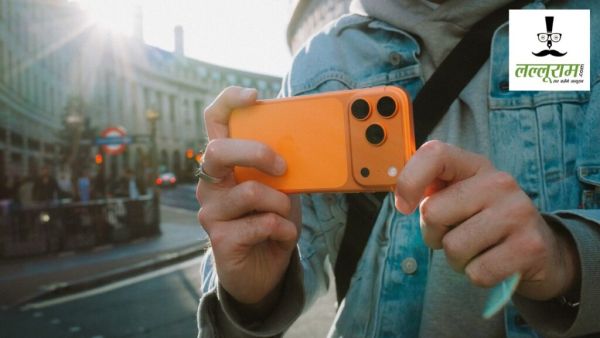
iPhone Camera Tips: Technology Desk. Apple's iPhone is much liked for its camera quality. Especially among the youth, there is a lot of craze for making photos and videos with iPhone. However, not all users are aware of many camera features present in the phone. There are also some settings in iPhone, which after turning on can make the experience of clicking photos even better.
If you often face problems like frame being crooked in photos, subject not being in the right place or distortion at the edges of wide photos, then these camera features of iPhone can be useful for you.
Level feature will help in keeping the photo straight (iPhone Camera Tips)
If you take photos of the ground, table, building or any other straight surface then the Level feature can be very useful. With its help, it becomes easier to keep the camera straight and the possibility of the photo frame being crooked is reduced.
To activate this feature:
- First open iPhone's Settings
- Now go to Camera option
- Level option will be available here
- turn it on
After this, the prompts on the screen while using the camera will help you understand the status of the phone. With its help, you can align the phone properly before clicking the photo.
Improve framing by turning on Grid
Many times, despite the photo being good, the subject does not come in the right place in the frame. In such a situation the Grid feature can be helpful.
After turning on Grid, lines appear on the camera screen. These lines help you position the subject and better align straight lines in the photo, such as buildings, tables or windows.
Turn on this feature like this
Settings > Camera > Grid > On
Grid can be used especially to improve the composition of photos.
Lens Correction will reduce photo distortion
While taking photos with iPhone's Ultra Wide camera, sometimes the objects at the edges of the frame may appear slightly bent. To reduce this, Lens Correction feature has been provided in iPhone.
Turn on this feature like this
Settings > Camera > Lens Correction > On
This feature can be especially useful when taking wide shots, buildings and group photos. This helps reduce edge distortion caused by the camera lens.
Change the look of the photo while shooting with Photographic Styles (iPhone Camera Tips)
If you do not like to edit every photo after clicking it, then Photographic Styles can be a useful feature for you.
With its help, the look of tone, color and contrast can be changed while taking the photo itself. The style of your choice can be selected by accessing Photographic Styles through the controls available in the Camera app.
Different styles can be tried in different situations. Whichever style you like best can be used as per your need.
Preserve Settings eliminates the hassle of changing settings again and again.
Does it also happen to you that after selecting a particular mode or setting in the Camera app, that setting changes again as soon as you close the app? Preserve Settings feature in iPhone can reduce this problem.
Follow these steps
Settings > Camera > Preserve Settings
Here you will see different options available. These can be activated as per your need. The Camera app can then remember some of the settings or modes you choose.
The advantage of this is that the need to re-set preferred settings every time you open the camera is reduced.
Keep these settings in mind for better photos
While using iPhone camera, the megapixel or camera sensor alone does not decide the quality of the photo. Holding the phone correctly, framing, choice of lens and camera settings also affect the outcome of the photo.
Level can help in keeping the frame straight, Grid can help in improving the composition, Lens Correction can help in reducing distortion, Photographic Styles can help in changing the look of the photo and Preserve Settings can help in maintaining the favorite settings.
-
How Elton John’s long and remarkable bond with Watford shaped the club’s golden years

-
Proud to be 'dimagi Naxal': Cong's P Chidambaram hits back at PM

-
Beauty with gold! Have you ever bought '24 Carat Gold Serum'? A small mistake can cause a big loss
-
Central government to organize road show in Patna for eighth phase of 'Critical Mineral Block' auction

-
Anthropic CEO says AI backlash is ‘fundamentally a crisis of trust’