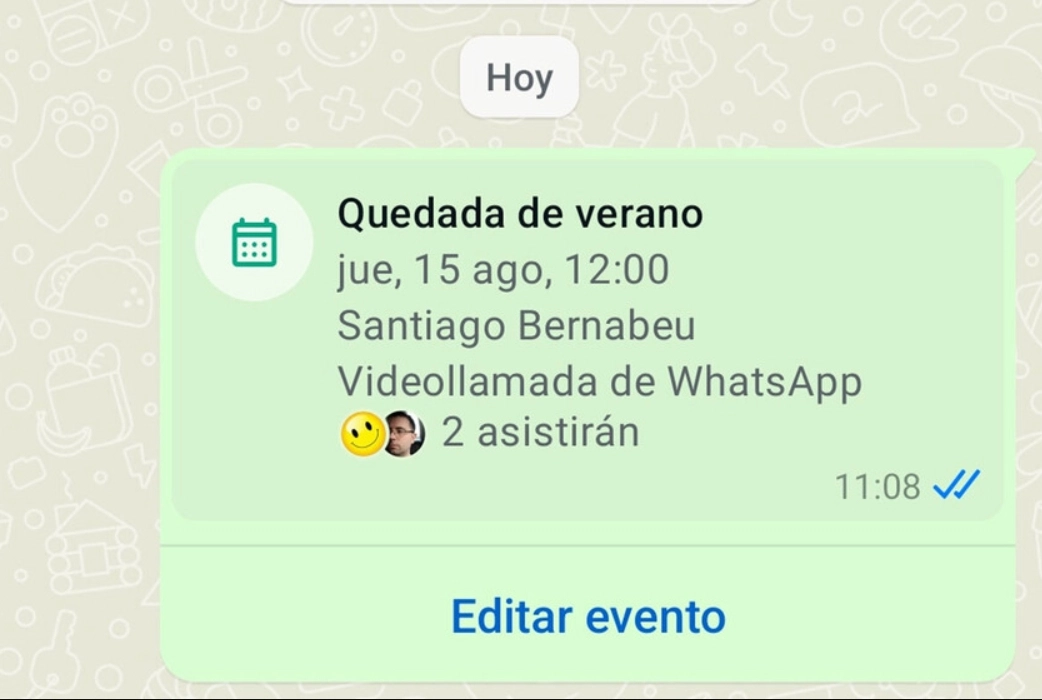
WhatsApp now allows us to create events in groups serving as reminders that something will take place on a certain day, a certain time, and a certain place and allowing group members to note whether they will attend or not.
We tell you how can you create an event in a WhatsApp group the options you should include, how these events are displayed in the chat, and how you can set whether you will go or not.
How to create an event on WhatsApp
Are you organizing a party on WhatsApp? Trying to find out if your friends are up for a trip this weekend? Maybe something more mundane like a work meeting? WhatsApp has a new tool for this: the events.
It is now possible to create events in WhatsApp groups, something that is carried out from the menu to attach things (the one in the clip). If you are in a group and you have the function active (which should be normal if you have an updated version of WhatsApp), you will see that a new icon now appears that was not there before Events.
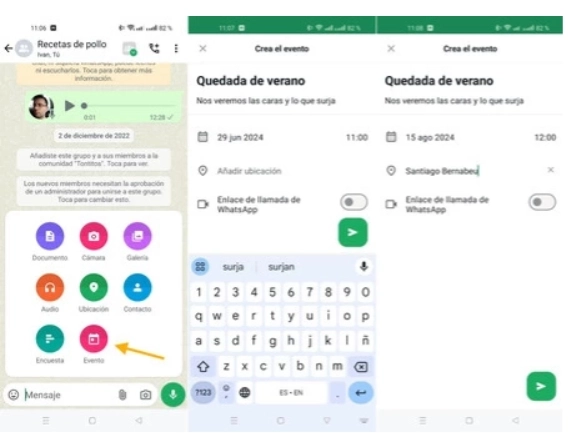
WhatsApp events are relatively simple, in that they only consist of a name and a description. For now, they cannot have any associated photos or anything additional.
What you can do is establish the day and time, as well as the place location field is free and does not include auto-completion of places, which is a bit disappointing but on the other hand it gives you total freedom to write whatever you want.
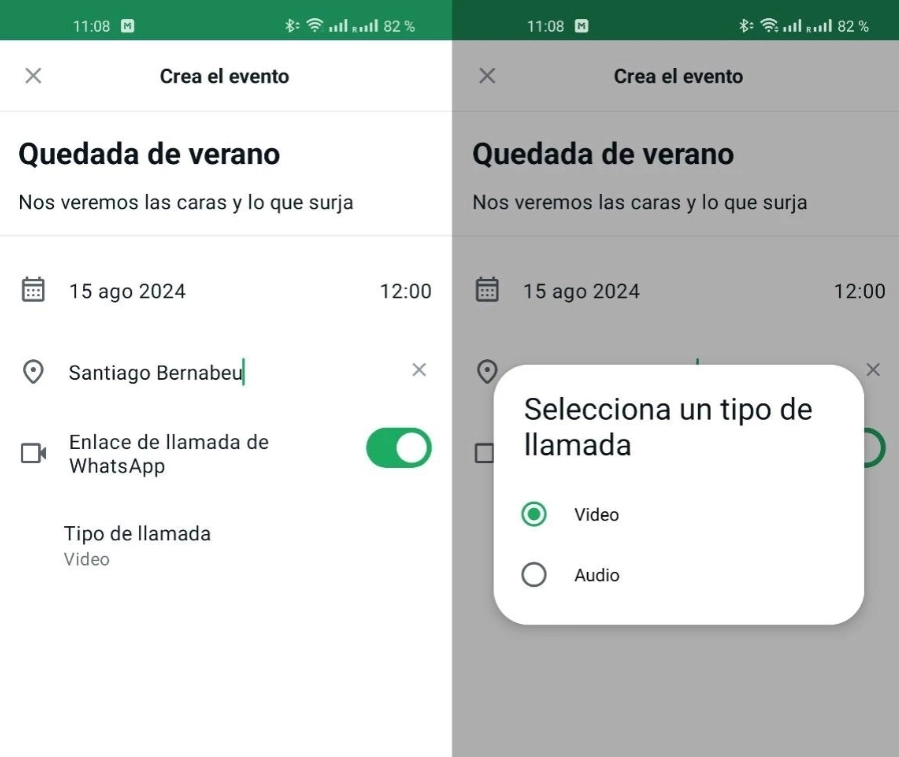
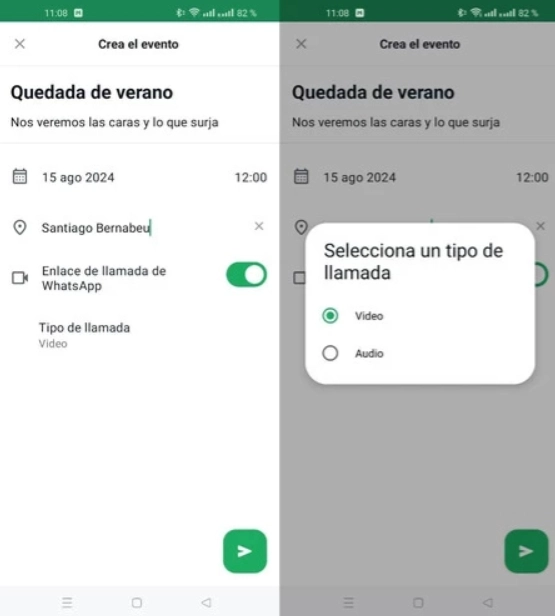
For virtual events that take place on WhatsApp, you have the option to mark a WhatsApp call which will allow you to choose between whether you want an audio or video call. This is another way to create a schedule something possible for months.
How to answer if you will attend or not
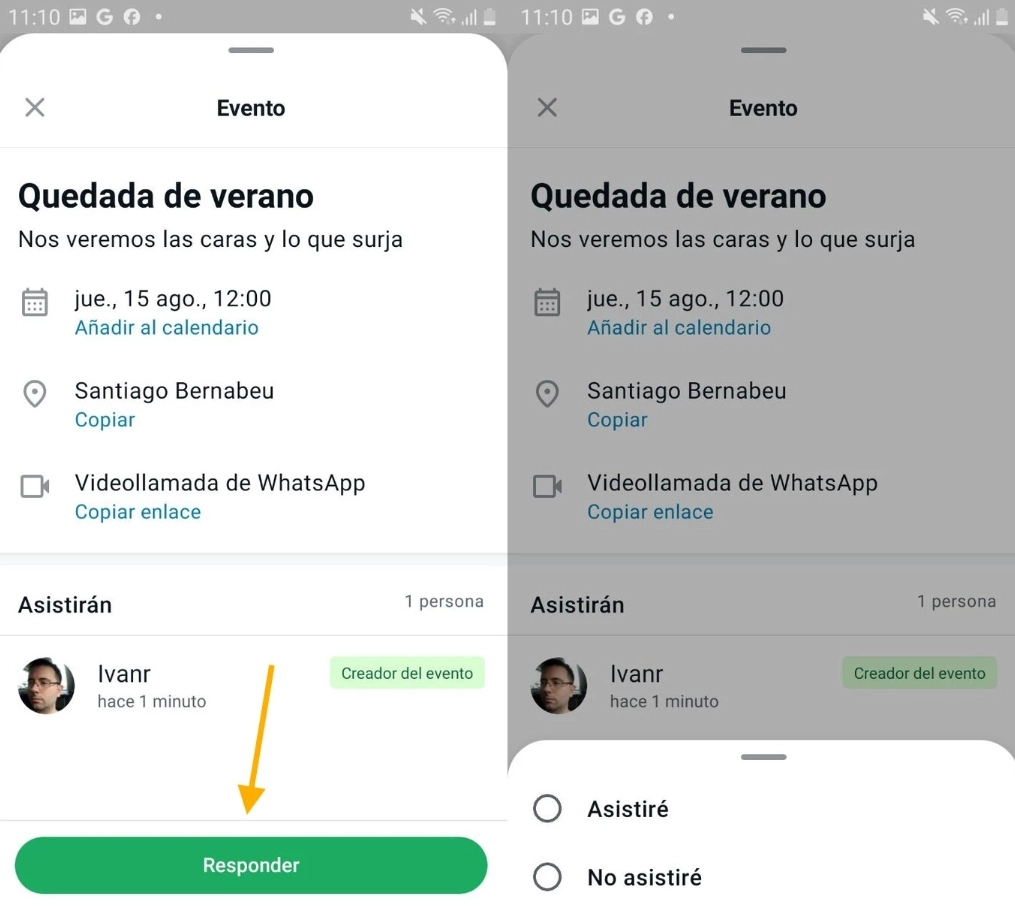
Events are displayed in the chat with a card preview where you can see the name, date and who is attending for now. The person who creates the event is marked as an attendee and it is not possible to change it.
You can indicate whether you are going to attend the event directly from this card, but if you tap on it you will see all the detailed information, options to export it to the calendar and the button Reply. You then have two options: I will attend or I will not attend.
-
US Naval Blockade on Iranian Ports Resumes Amid Rising Tensions

-
Investigation Underway for Cyclospora Outbreak Linked to Fresh Produce

-
This 101-year-old journalist still works and lives independently. Her 3 daily habits may surprise you

-
Fenerbahce sign former Manchester United forward Mason Greenwood from Marseille

-
FIFA World Cup 2026, Spain beat France in semis: Stats